

One Platform
One Platform is where your business sends, tracks and fixes its e-invoices. It has two portals, one for finance teams and one for the people who connect your systems, and this page shows what is in each.
Two portals
Both portals work on the same workspace. Invoices your system sends after you set it up in the Developer portal appear in the Invoice Portal’s documents.
Invoice Portal
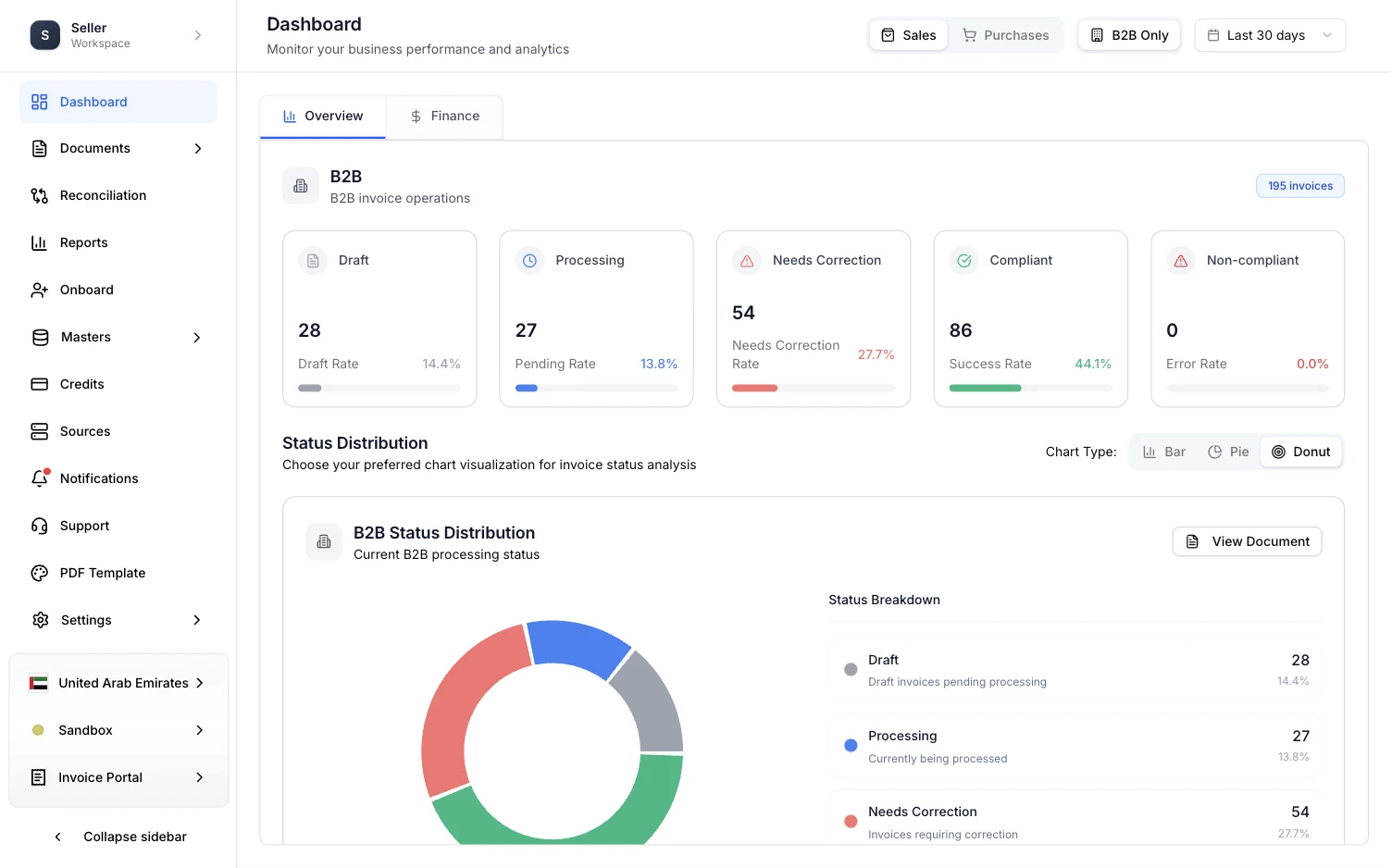
You land here after you sign in, unless you said you were a developer during setup. Use it to:
- see your documents, find out why one failed, fix it and send it again
- download reports for the country you are working in
- onboard the companies that issue your invoices
- check your credits
- invite teammates and set their roles in Settings
Developer portal
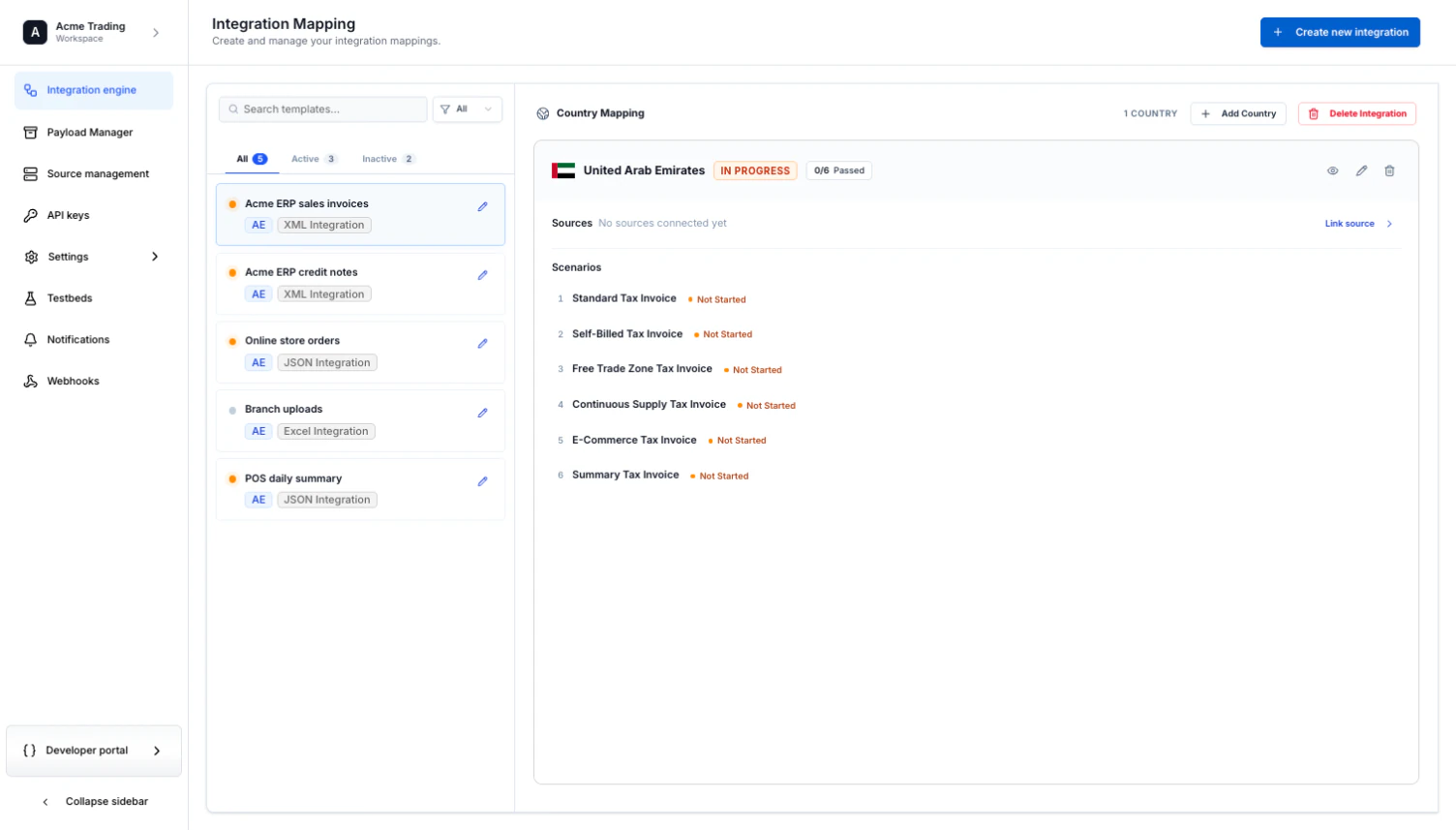
Use it to connect a system, such as your ERP, to One Platform:
The API itself is described in the API reference.
Switch between portals
The portal switcher sits at the bottom of the sidebar. Choose it, then choose Invoice Portal or Developer portal.

Which portals you see depends on your role in the workspace:
| Role | Invoice Portal | Developer portal |
|---|---|---|
| Owner, Admin | Yes | Yes |
| User | Yes | Depends on your workspace |
| Guest | Yes, to view and export | No |
| Integrator | No | Yes |
See Roles for what each role can do.
Country and environment
In the Invoice Portal, two more switchers sit above the portal switcher. Country picks the country whose documents, reports and onboarding you see. Environment picks Sandbox, for testing, or production. See Country, environment and portal.
If something goes wrong
The Developer portal is not in the switcher
Your role does not include it. Guests never see it, and Users see it only in some workspaces. Ask an Owner or Admin to change your role, or to invite your developer as an Integrator.
A page is empty, or the numbers look wrong
Check the country and environment switchers. Every Invoice Portal page shows one country and one environment at a time, so invoices sent in Sandbox do not appear in production.
A menu item is missing
Some items depend on your role, and some only appear for certain countries. B2C Vault, for example, is for Malaysia.
Next, send your first invoice.