

Documents
Documents lists every invoice and credit note in your workspace. Use it to find a document, see what happened to it, and fix the ones that failed.
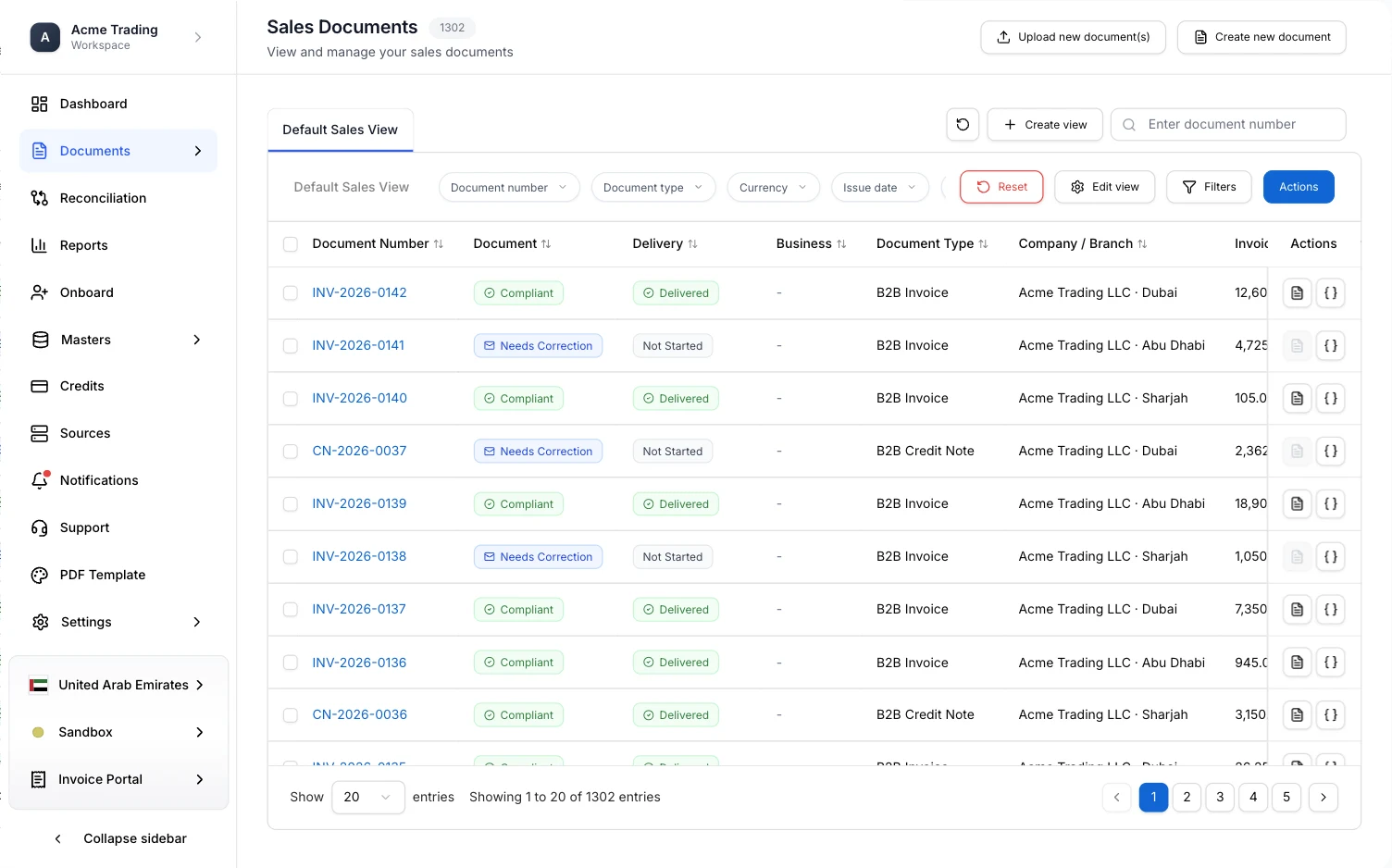
Open Documents in the Invoice Portal menu. It has two lists: Sales, for documents you issue, and Purchases, for documents you receive. Each list shows the documents for the country and environment selected at the bottom of the sidebar. The number beside the title is how many documents match the current search and filters.
Read a document’s status
Every document carries more than one status, because more than one thing happens to it.
| Column | What it tells you | For example |
|---|---|---|
| Document | Whether the document is valid, and whether the tax authority or network accepted it. | Ready, Processing, Needs Correction, Compliant, Non-Compliant |
| Delivery | Whether it reached the other side. | Not Started, Pending, Delivered, Delivery Failed |
| Business | What the other party decided. Malaysia only; a dash elsewhere. | Buyer Rejected, Seller Cancelled |
Document statuses explains every value, by country. Read them left to right. A document that Needs Correction has a delivery of Not Started, because it cannot be sent until it is fixed. A document can also be Compliant and still show Delivery Failed: the document was fine, but it did not get through.
The other columns are the Document Type, such as B2B Invoice or B2B Credit Note, the Company / Branch, the Invoice Total Amount, the Issue Date and the Document Currency.
Find a document

- Search by typing a document number in the box at the top right.
- Filter with the quick filters above the list: document number, document type, currency, issue date, document total, and each of the three statuses. Filters opens the full set. Reset clears them.
- Sort by choosing a column heading. Status and company columns cannot be sorted.
- Page through the results at the bottom, and choose how many rows to show.
To see only the documents that need work, filter Document to Needs Correction.
A view is a saved way of looking at the list. See Search, filters and views.