

Download, export and email documents
Open the PDF or XML for one document, or export and email up to 50 selected documents. Start from the Sales or Purchases list for the country and environment you want to use.
Open one document as PDF
The document icon at the end of a row is View PDF. Choose it to generate the PDF and open PDF Document Preview.

From the preview, choose:
- Open in New Tab to use the browser’s PDF viewer.
- Download PDF to save
document-DOCUMENT_ID.pdf. - Retry Preview if the PDF could not be prepared.
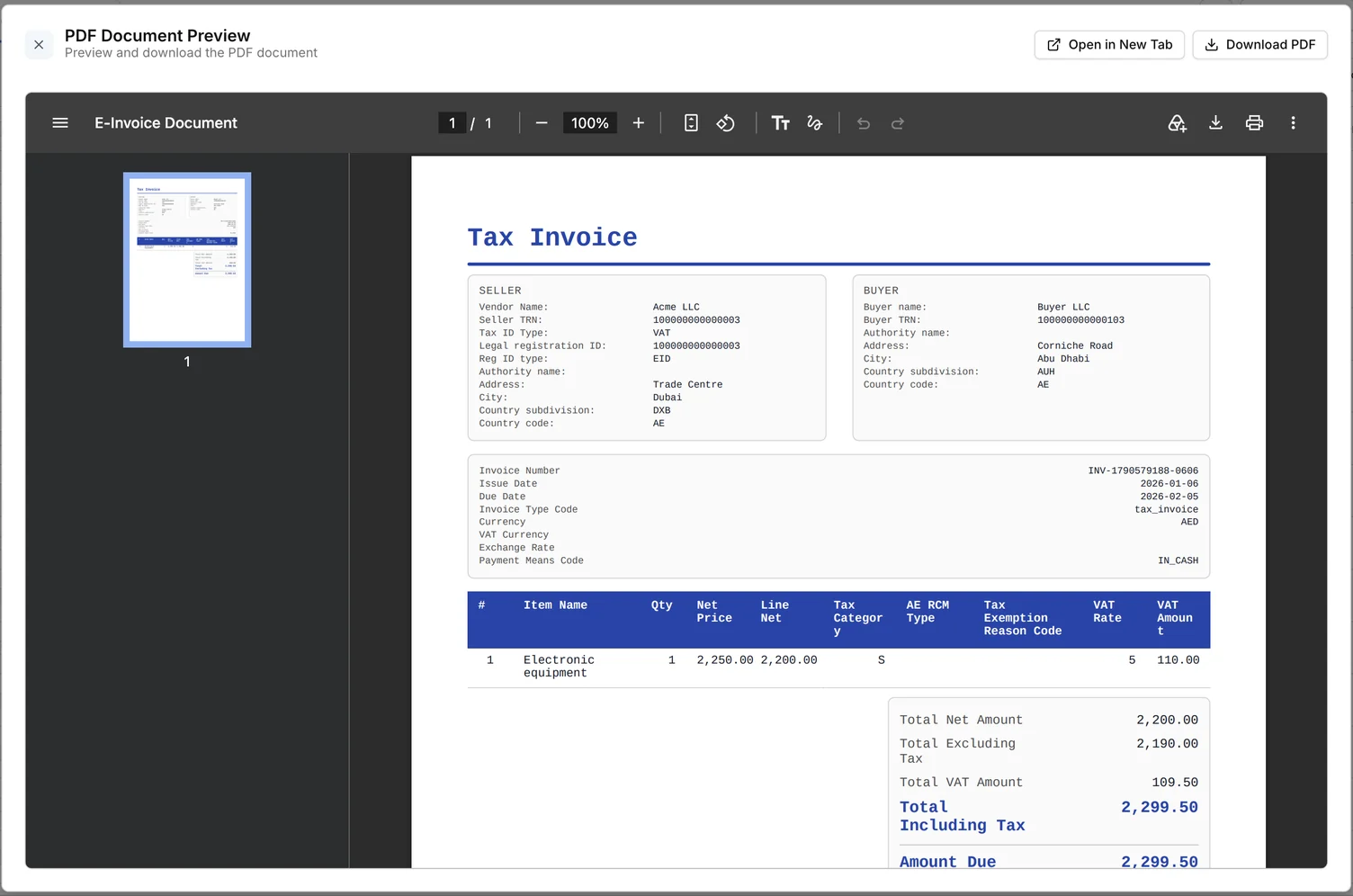
The PDF is the human-readable presentation of the document. Its colours, logo, fields and layout come from the matching PDF template. Changing a PDF template changes the presentation; it does not change the invoice data or XML.
View PDF is available when the document is ready for a PDF. This includes Compliant documents and documents whose business status is Buyer Rejected or Seller Cancelled. For Belgium and Germany, a Submitted document is also available after its delivery status is Delivered.
The button is unavailable for a document that is still being prepared or marked Needs Correction. Correct and resubmit that document first.
Open one document as XML
The braces icon at the end of a row is View XML. It opens the machine-readable e-invoice produced for the country or delivery network.
If the document has more than one XML, use the selector at the top of XML Data Viewer to choose one. Depending on the country and document, the choices can include Invoice XML, TDD XML and message-level status XML.
Choose:
- Open in New Tab to open the selected XML in the browser.
- Download XML to save
document-DOCUMENT_ID.xml. - Copy XML to copy the selected XML to the clipboard.
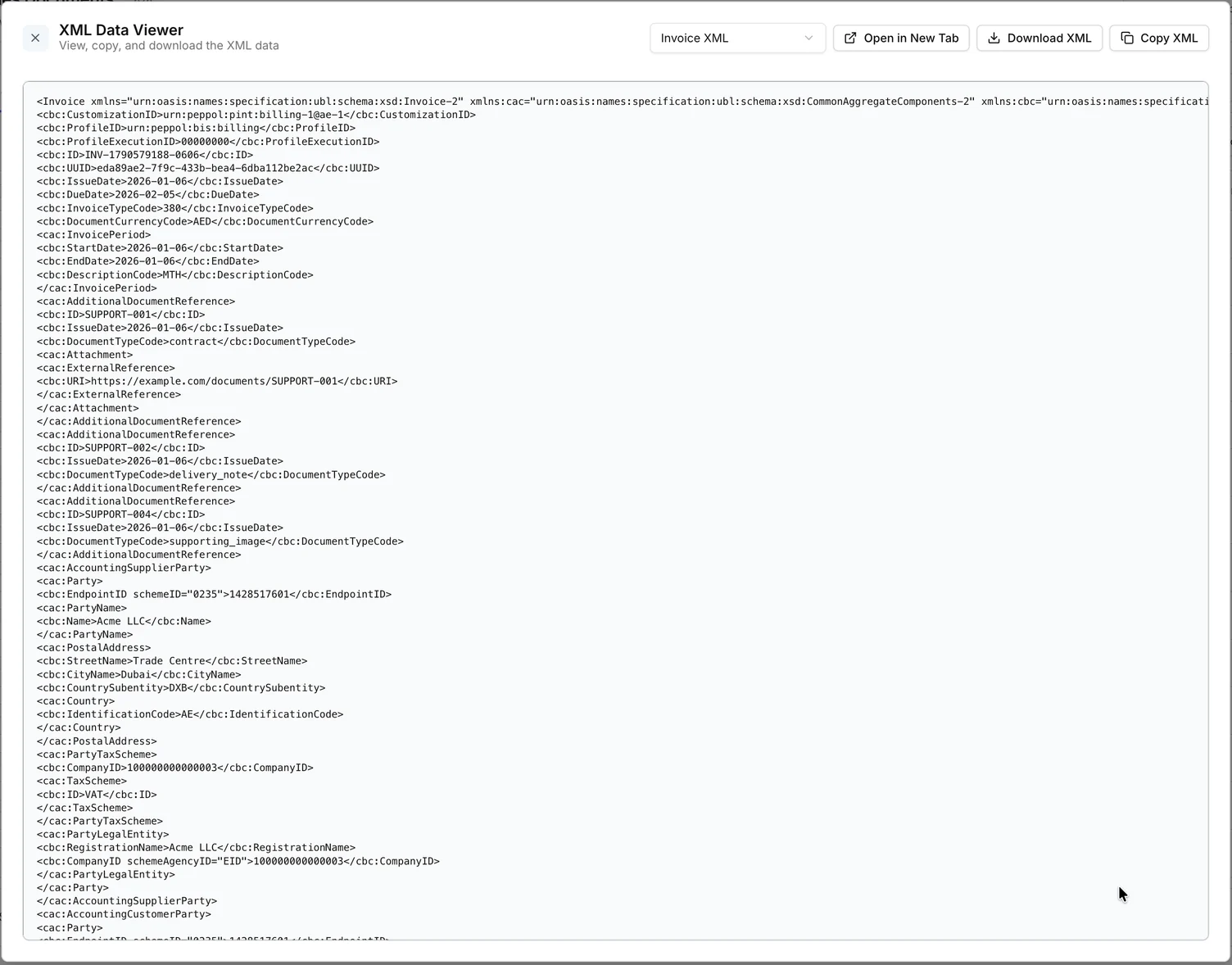
XML is useful for developers, auditors and anyone who needs the structured invoice that was submitted or exchanged. Its contents are not controlled by PDF Template.
If the page says XML not available for this document, the selected XML has not been produced for the document’s current status.
Export selected documents
Select the documents
Apply any search or filters before selecting rows. Select documents with the checkbox at the start of each row. Use the checkbox labelled Select all visible rows in the table heading to select the current page.
You can select up to 50 documents for one bulk action. If more rows are visible, Select all visible rows stops at 50 and shows a warning.
Choose an action
Open Actions above the table. Choose one of these options:
| Action | Result |
|---|---|
| Export to Excel | Downloads one XLSX workbook with one row for every selected document. |
| Download as PDF | Downloads a ZIP archive containing one PDF for every eligible selected document. |
| Download as XML | Downloads a ZIP archive containing one XML for every eligible selected document. |
| Send documents via Email(s) | Creates the selected export formats and emails secure download links to the recipients you enter. |
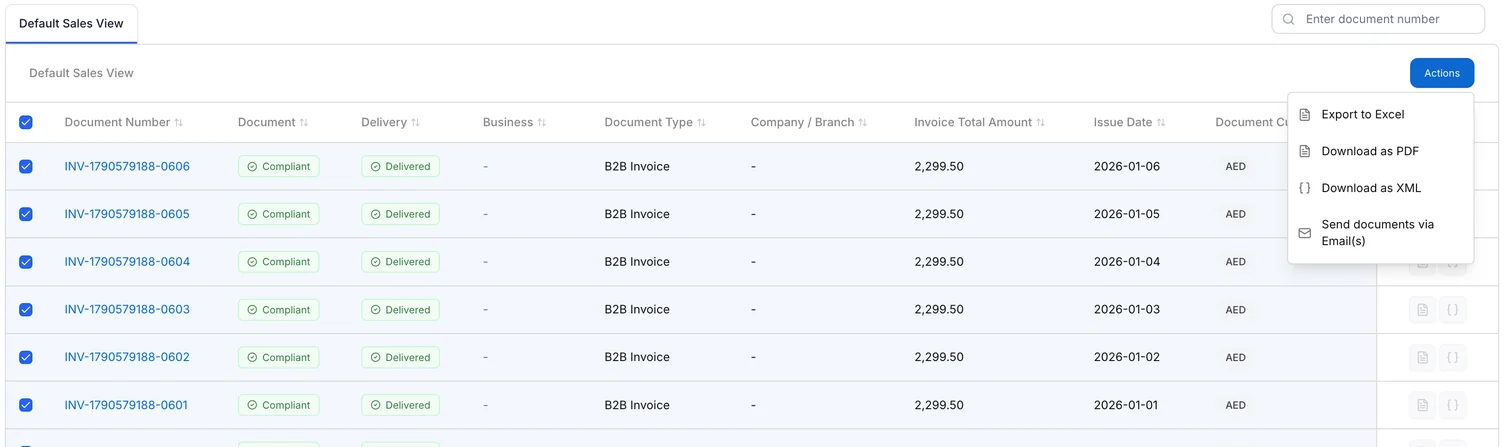
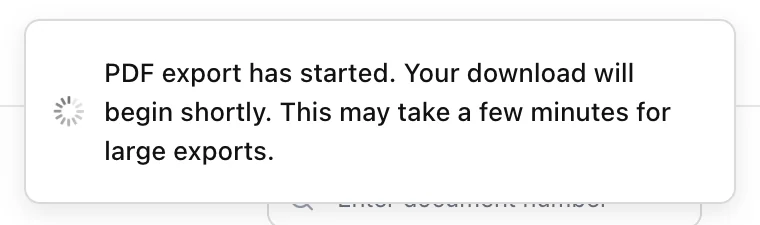
PDF and XML downloads are ZIP archives even when you select one document. Large exports can take a few minutes. Keep the page open until the browser download begins.
Check the result
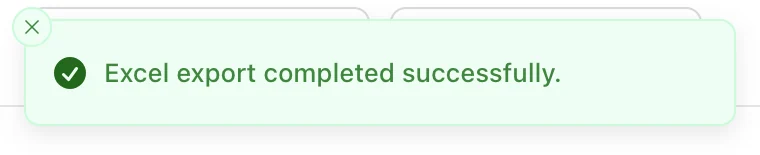
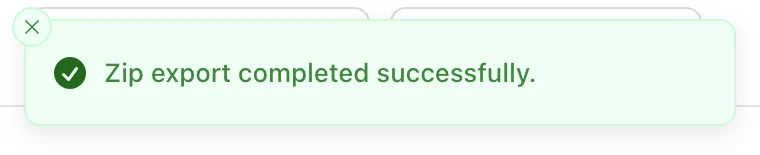
A successful browser export starts the download and clears the selection. Open the file and check the number of documents.
- Excel includes every selected document.
- PDF and XML include only documents eligible for those formats.
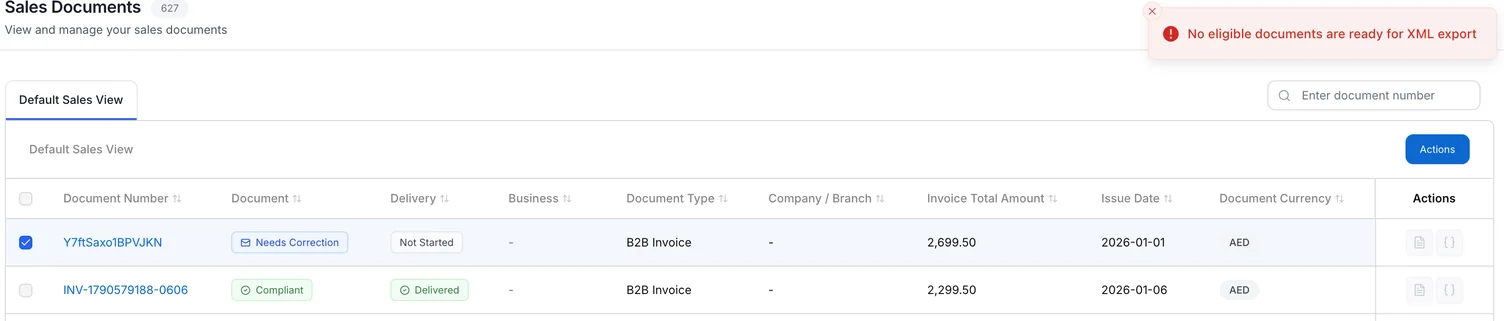
If some selected documents are not eligible for PDF or XML, Complyance warns you and excludes them. If none are eligible, the export does not start.
What the Excel export contains
The workbook contains one Documents sheet. For most countries it contains:
| Column | Meaning |
|---|---|
| Document Number | The invoice or credit-note number. |
| Document Type | The invoice or credit-note type. |
| Document Status | Its country or document status at the time of export. |
| Issue Date | The date on the document. |
| Document Currency | The invoice currency. |
| Seller Name and Buyer Name | The two parties. |
| VAT Total | The total tax amount. |
| Document Total | The total including tax. |
For the United Arab Emirates, the workbook uses the corresponding UAE column names, including Invoice Type Code, Invoice Currency Code, Invoice Total VAT Amount and Invoice Total Amount With VAT.
Choose UAE XML files
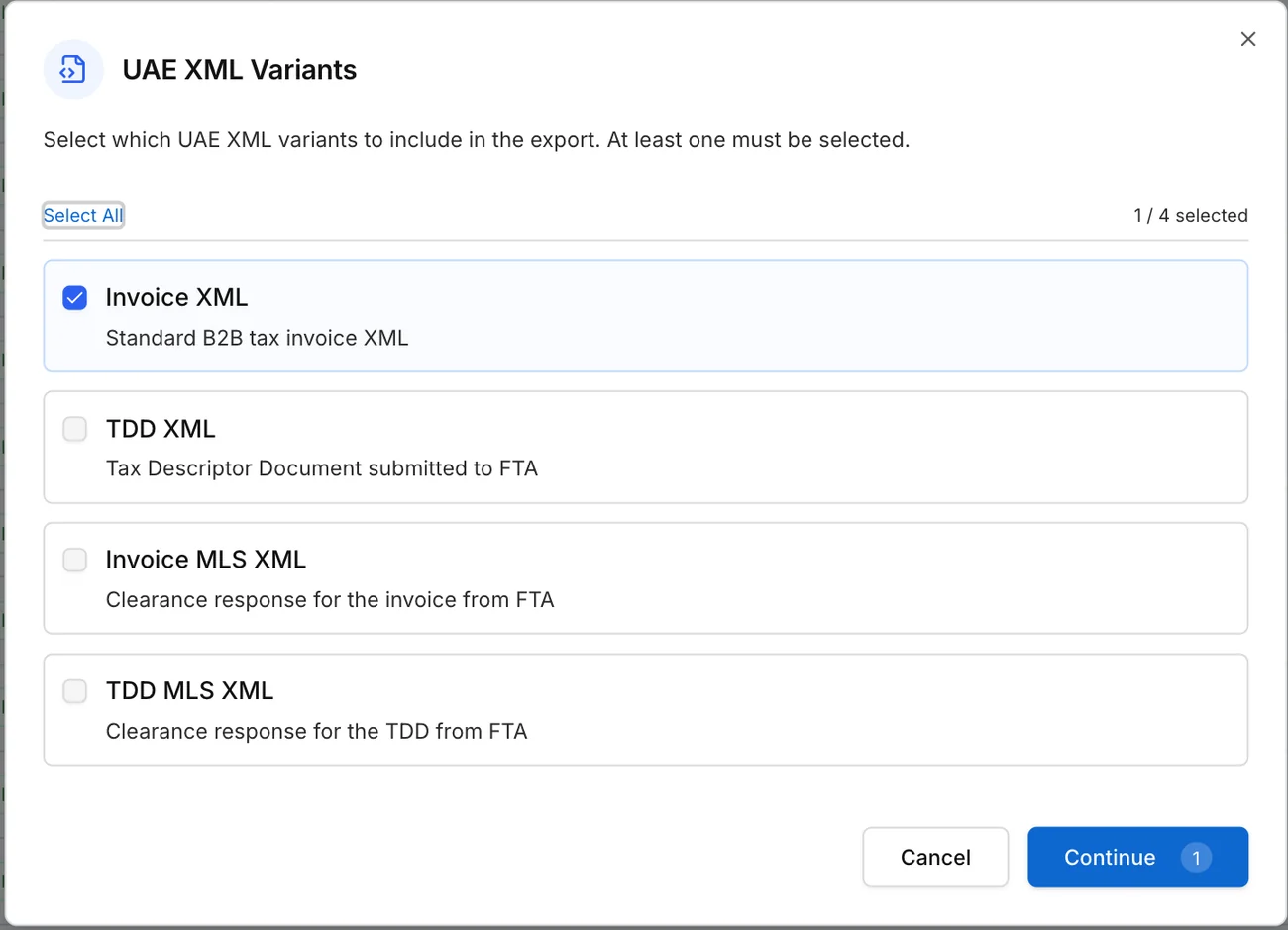
For a UAE XML download, choose at least one variant before continuing:
| Variant | What it contains |
|---|---|
| Invoice XML | The standard B2B tax-invoice XML. |
| TDD XML | The Tax Descriptor Document submitted to the Federal Tax Authority. |
| Invoice MLS XML | The message-level status response for the invoice. |
| TDD MLS XML | The message-level status response for the Tax Descriptor Document. |
Use Select All to include all four. In a downloaded ZIP, each variant is kept in its own folder. In an emailed export, each selected variant gets its own download link.
Email export links
Choose the files to send
Select the documents, open Actions, then choose Send documents via Email(s).
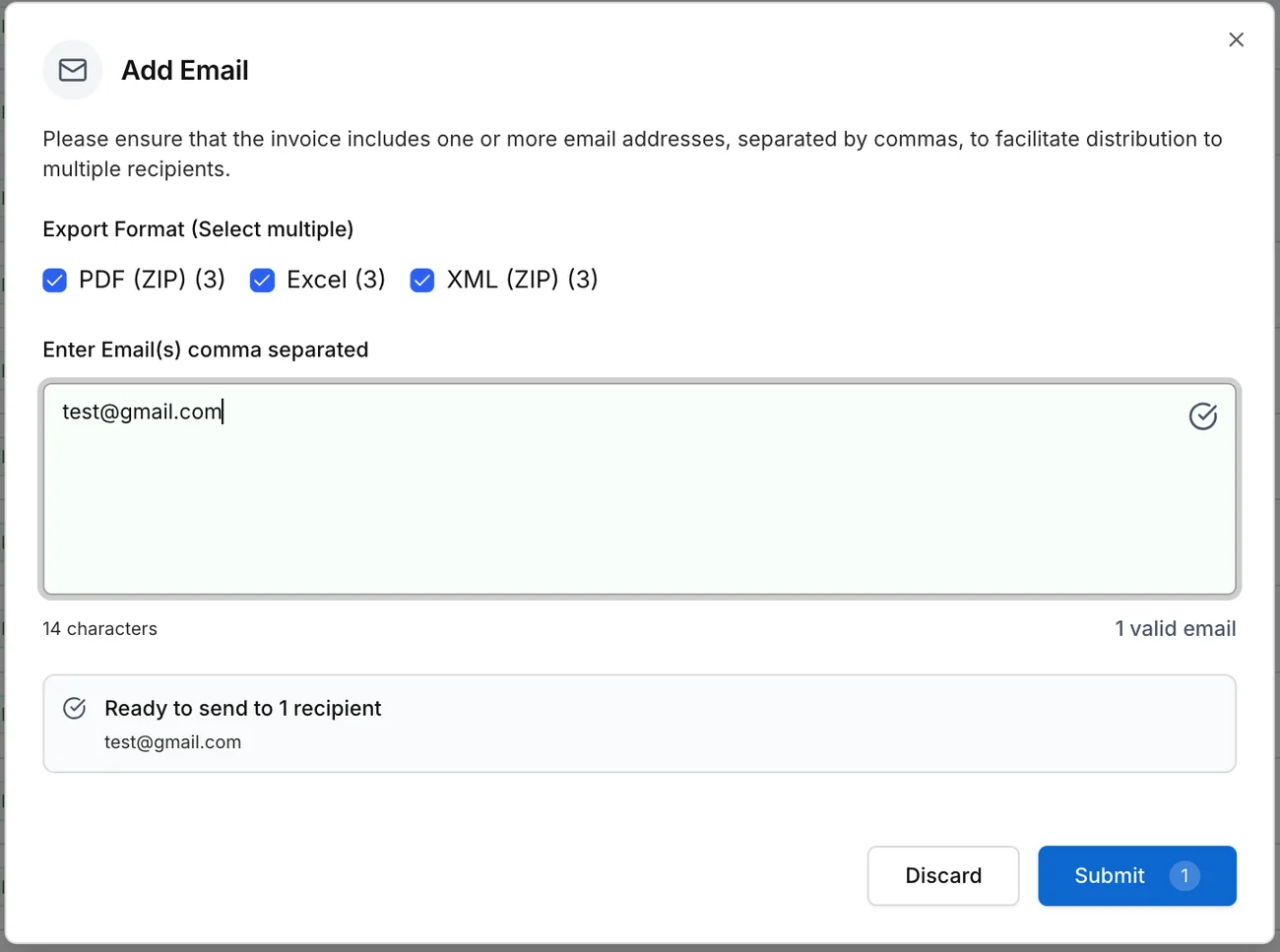
Under Export Format, select one or more of PDF (ZIP), Excel and XML (ZIP). The number beside each format tells you how many selected documents are eligible. A format with no eligible documents is unavailable.
If you include XML for UAE documents, choose the XML variants after submitting the email form.
Add recipients
Enter one or more email addresses separated by commas. You can add up to 50 recipients.
Remove duplicate or invalid addresses before continuing. The dialog shows the number of valid recipients and enables Submit when at least one format and one valid address are present.
Submit the request
Choose Submit. Email request sent successfully means that the export was accepted for preparation; it does not mean that the email has already arrived.
Every recipient receives the same email with a download link for each selected format. The links expire after 24 hours. PDF and XML links contain eligible documents only, while the Excel link contains every selected document.
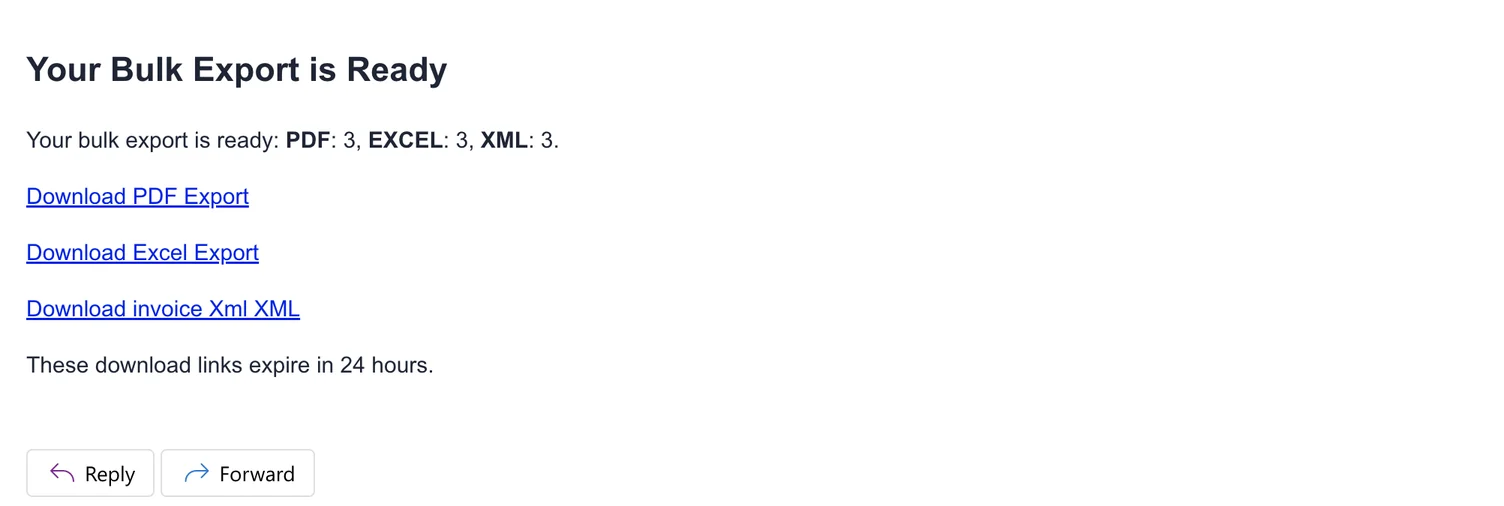
Complyance sends an in-app notification when the export is ready. If preparation or delivery fails, the notification says Bulk Export Failed so you can try again or contact support.
Which documents can be exported
Selecting a row does not guarantee that every format is available. The format decides which documents are included.
| Document state | One PDF | Bulk PDF or XML |
|---|---|---|
| Compliant | Available. | Included. |
| Buyer Rejected or Seller Cancelled | Available. | Included. |
| Belgium or Germany: Submitted and Delivered | Available. | Included. |
| Needs Correction or still processing | Unavailable. | Excluded. |
The single-document XML viewer can also show XML for processing, non-compliant or cancelled documents when XML has already been produced. The viewer shows only the variants available on that document.
If something goes wrong
| What you see | What to do |
|---|---|
| The row action icons are unavailable | Clear the bulk selection, then try the row action again. |
| View PDF is greyed out | Check the document status. Correct a document marked Needs Correction, or wait until processing finishes. |
| Fewer PDFs or XML files than selected documents | Read the exclusion warning. Check the excluded documents’ status, then retry when they become eligible. |
| XML not available for this document | Wait for the document workflow to produce XML, then refresh the list. |
| The browser did not open a new tab | Use Download PDF or Download XML instead. Your browser may have blocked the new tab. |
| The emailed links have expired | Select the documents and submit a new email export. |
| The email has not arrived | Check the recipient addresses and the in-app notification. The initial success message only confirms that preparation started. |