

Manage master records
Save sellers, buyers and items so you can reuse their details in documents. Select the country and environment where you will use the records before you begin.
Master records are reusable seller, buyer and item details. They help you fill document fields consistently without entering the same information each time. The app calls each list of records a catalog: the buttons that save and reuse master records are Save to Catalog, Add to Catalog and Add from Catalog.
Open a catalog
In the Invoice Portal, expand Masters and choose Buyers, Sellers or Items. The page shows the records for your selected country and environment.

Add a record
Choose Add Buyer, Add Seller or Add Item. Fill in the ID and the details you want to reuse.
The form shows the fields available for the selected country. A red star marks the ID as required. Some records also let you add repeating details, such as tax IDs or registration numbers, with Add entry.
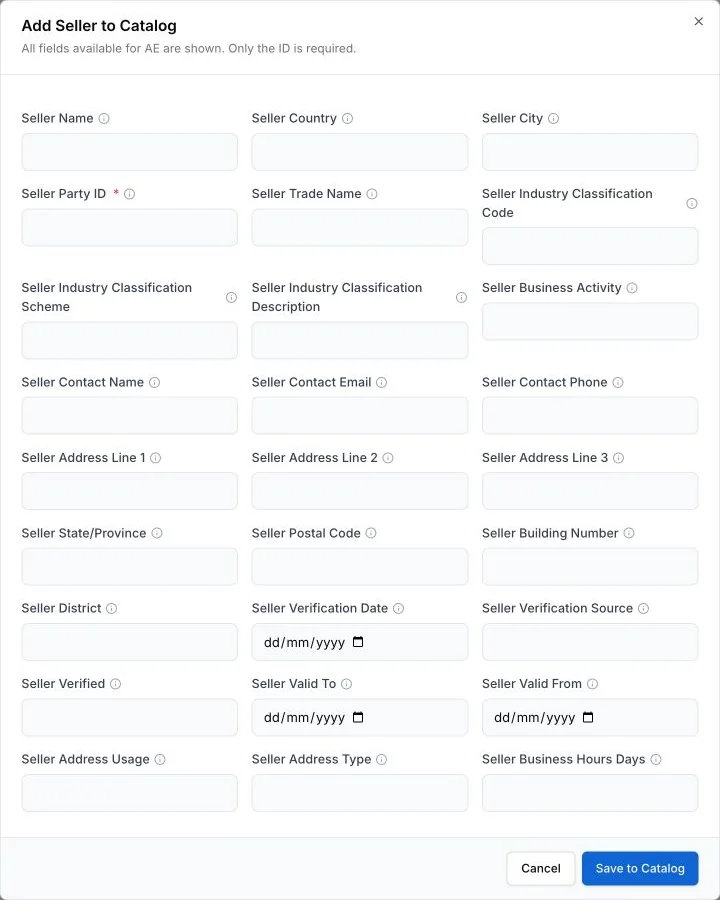
Save the record
Choose Save to Catalog. The dialog closes and the record appears in the catalog.
Reuse the record in a document
Open a document form and go to Seller details, Buyer details or Line items.
- Choose Add from Catalog to search for a saved record. Selecting a seller or buyer fills its saved fields. Selecting an item adds a line with its saved fields.
- Choose Add to Catalog to save the details currently entered in the form as a new master record.
Maintain the catalog
- Use the search field to find a record by its saved details.
- Use the pin control to pin or unpin a record.
- Use the edit action to change a record, then save it.
- Use the delete action to remove a record. The Delete Record dialog warns that this cannot be undone.
If something goes wrong
ID is required.
Enter the record’s buyer, seller or item ID, then choose Save to Catalog again.
A record is missing from Add from Catalog
Confirm that the document and the master record use the same country and environment. Also check that you opened the matching catalog: seller, buyer or item.
The catalog could not be loaded.
Close the catalog and try again. If it still does not load, refresh the page. Contact support if the problem continues.
Next, create or fix a document with the saved details.