

Create and activate PDF templates
Create a branded PDF layout and decide which documents use it. You need an onboarded company with a source linked to at least one branch.
Create the template
Open PDF Template in the Invoice Portal. Find the company and choose Manage templates beside one of its branches, then choose New template.

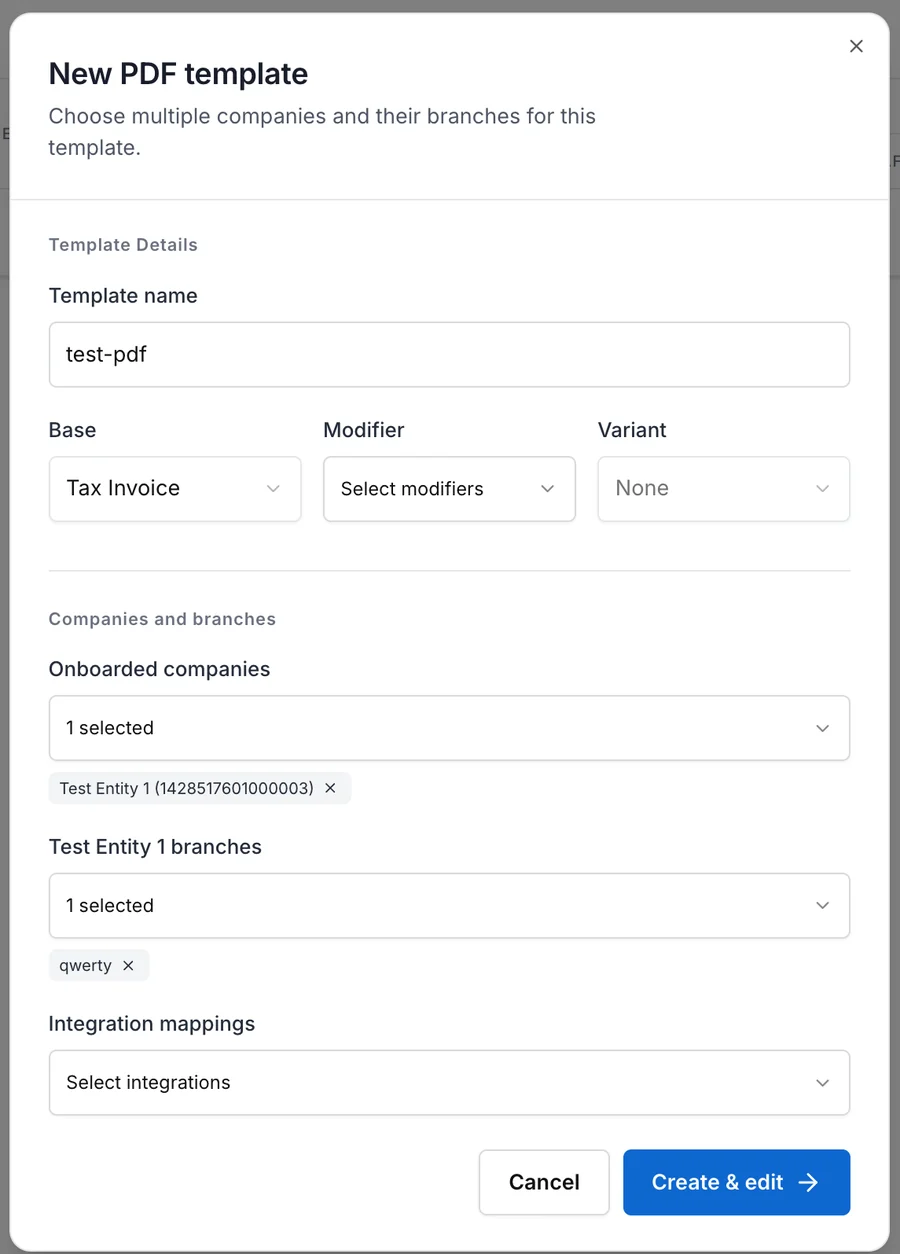
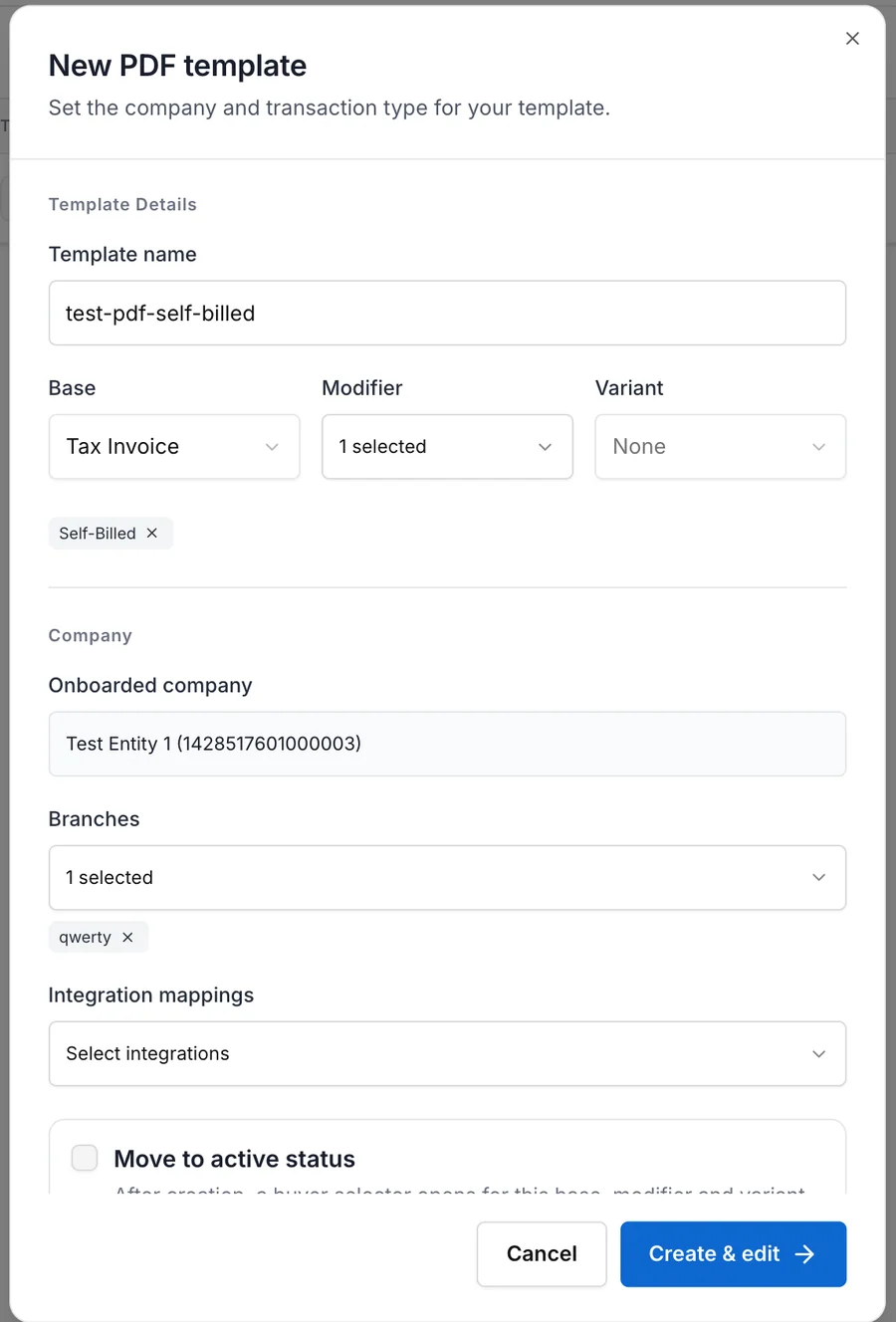
Complete the template details:
| Field | What to choose |
|---|---|
| Template name | Enter a unique, recognisable name. |
| Base | Choose the document type, such as Tax Invoice. |
| Modifier | Choose any conditions that further describe the transaction. More than one modifier can apply. |
| Variant | Choose the country-specific variant, or leave it empty when none applies. |
| Onboarded company | Choose the company whose documents use the template. |
| Branches | Choose one or more branches. Only branches with a linked source are available. |
| Integration mappings | Optionally associate the template with one or more current integrations for this country. |
Base, modifiers and variant form the template’s document profile. Automatic selection uses an exact profile match, so choose the same values that the intended documents use.
Choose Create & edit. The new template starts as a Draft and opens with a layout for the selected profile.
You can also choose New template from the main PDF Templates page and select several companies and branches. Complyance creates one Draft per selected company, covering the branches selected for that company, then opens the first Draft for editing.
Design the PDF
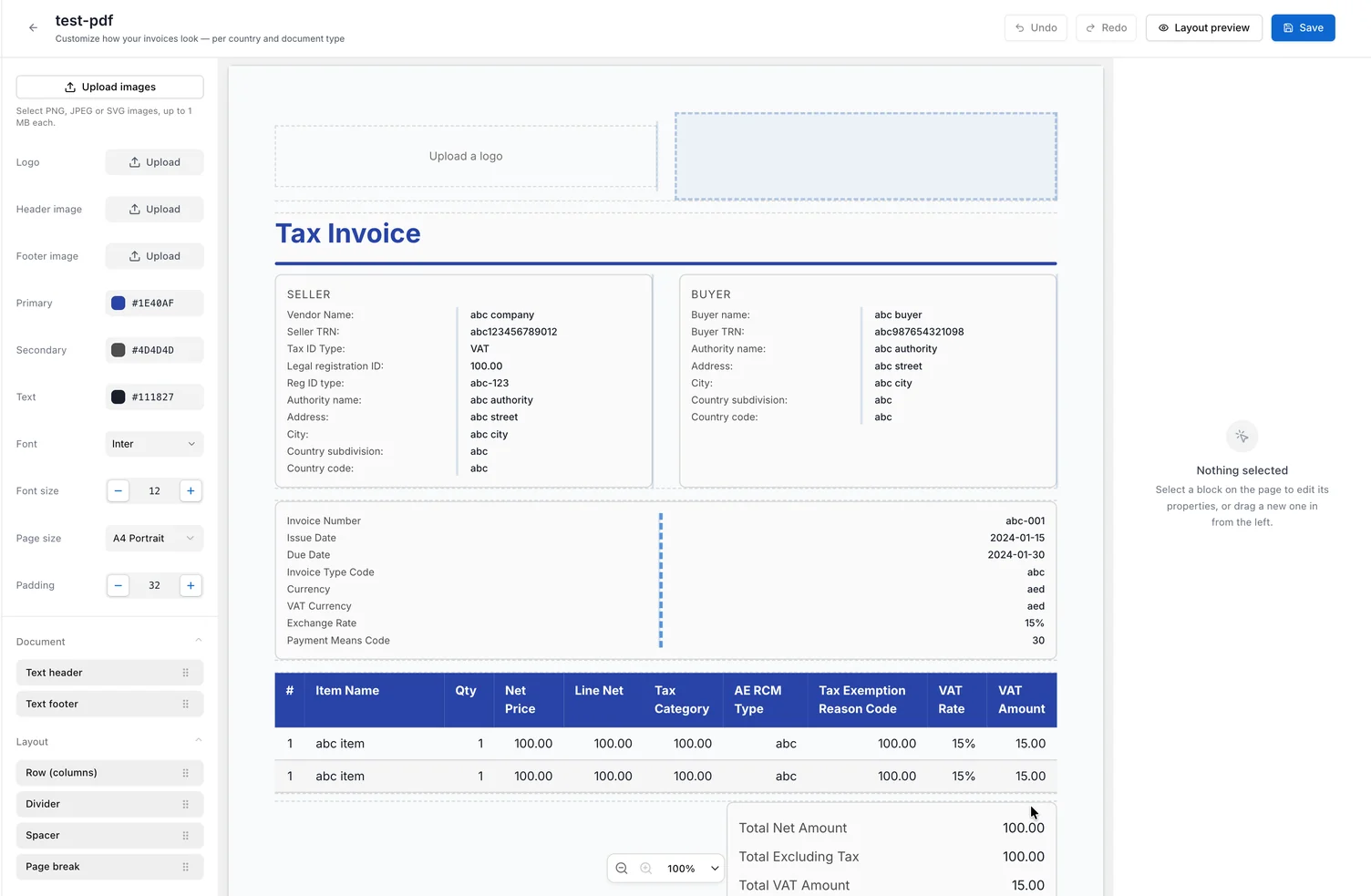
Use the controls on the left to set the template-wide appearance:
- Upload a logo, header image, footer image or other images. PNG, JPEG and SVG files are supported.
- Set the primary, secondary and text colours.
- Choose the font and base font size.
- Choose A4, A5, US Letter or US Legal in portrait or landscape.
- Set the page padding.
Drag blocks from the palette onto the page. The available blocks cover:
- document headers and footers;
- rows with one to four columns, dividers, spacing and page breaks;
- headings with fields and label–value lists;
- line items, subtotals and totals;
- text and QR codes; and
- logos, header and footer images, and uploaded images.
Select a block on the page to edit its properties on the right. For a field block, add the rows you need and bind each value to document data. Use static text only for content that should be the same on every PDF.
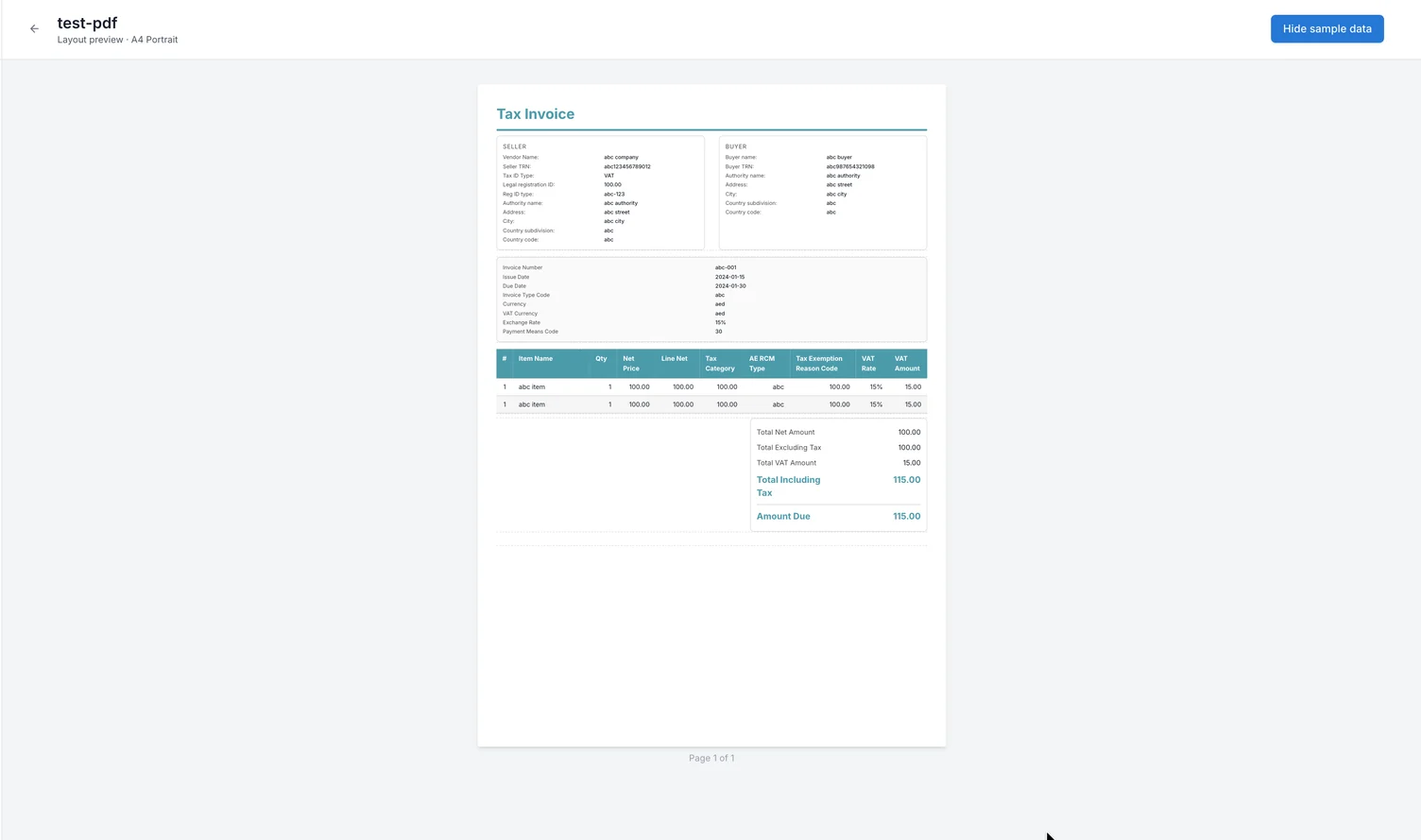
Use Undo and Redo while you work. Adjust the zoom to inspect the page, then choose Layout preview to check page breaks and the complete layout.
Choose Save. The button changes to Saved when the Draft is stored. If you leave with unsaved changes, choose Save, Don’t save or Cancel when prompted.
Copy the Template ID
Return to the branch’s template list. Draft and Active templates are shown in separate sections, and every row has a Template ID.
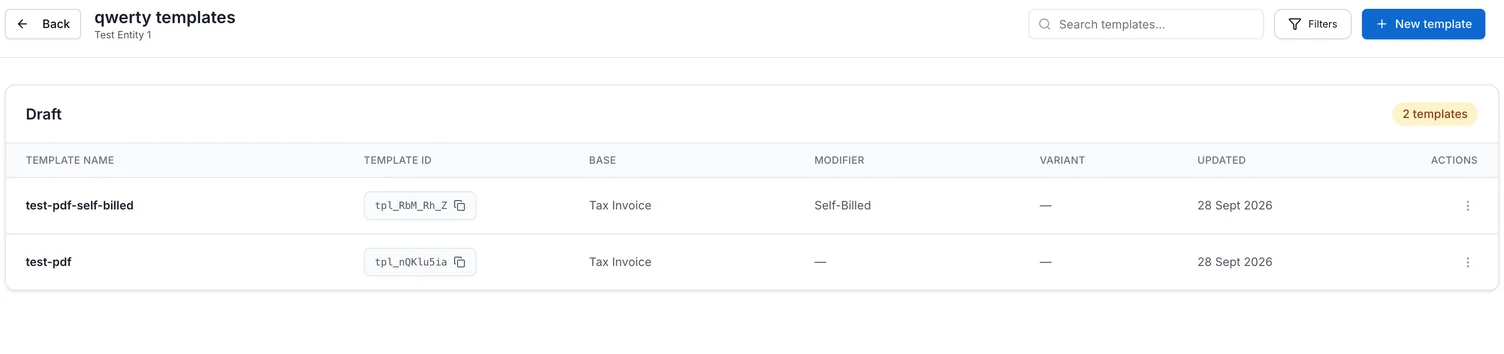
Choose the ID to copy it. The button briefly changes to Copied.
Use this value when one document must use an exact template. Add it to the document’s PDF_TEMPLATE_ID custom field, or map an incoming PDF_TEMPLATE_ID column to that field in your integration. The exact template is used even when it is a Draft; its source, document-profile and buyer rules are not used for that PDF.
Keep the explicit ID inside the workspace where it was created. An unknown ID or an ID from another workspace prevents the PDF from being generated and returns a 422 error.
Activate the template and choose buyers
Open the Draft’s actions menu and choose Activate. Confirm the activation, then choose its buyer coverage:
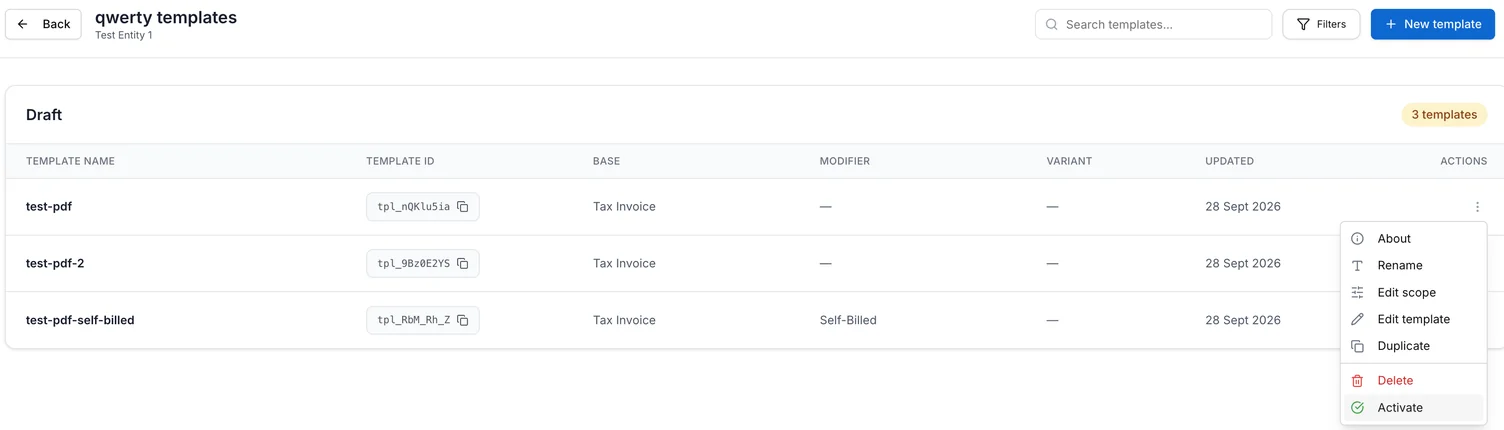
- Select one or more named buyers for a buyer-specific template.
- Choose Rest of the buyers to cover every buyer that does not already have a more specific active template for the same profile and branch coverage.
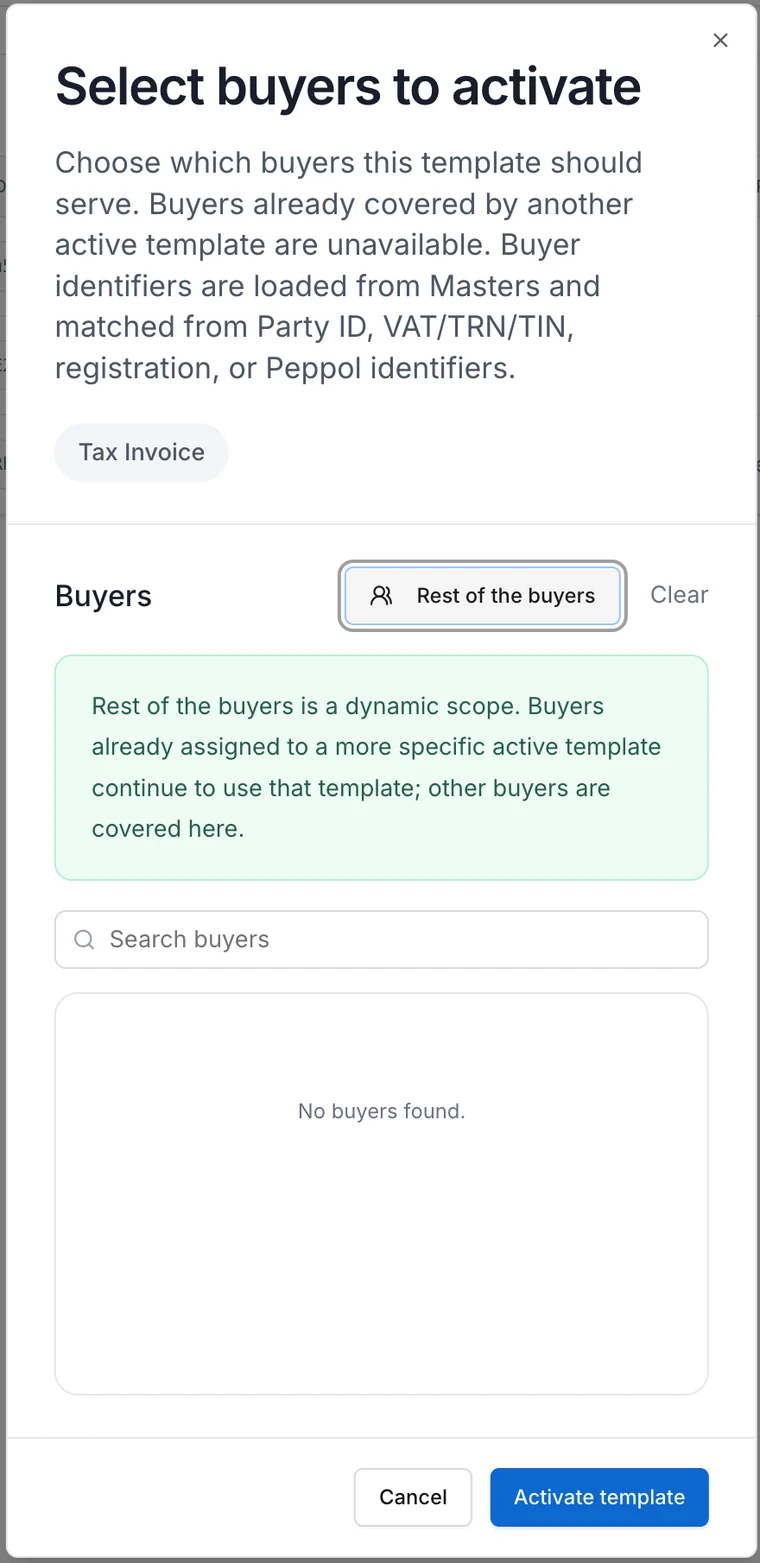
Buyer names and identifiers come from Masters. Complyance matches Party ID, VAT, TRN, TIN, registration and Peppol identifiers. A buyer marked Already assigned is covered by another active template with the same document profile and overlapping branch coverage, so it cannot be selected here.
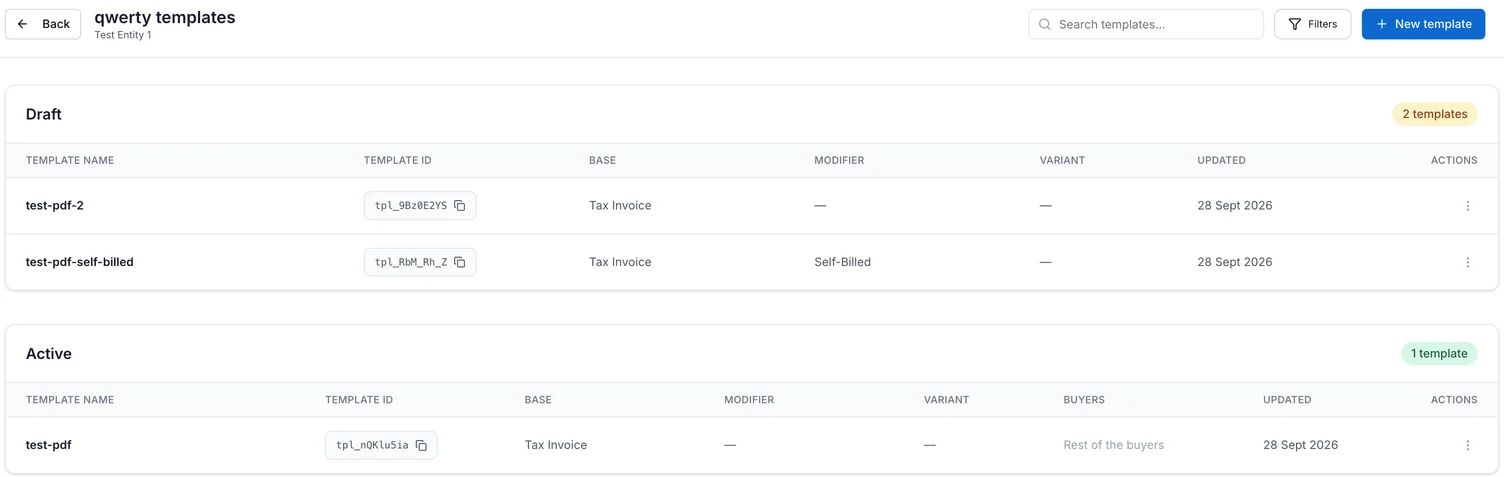
Choose Activate template. You should see the template under Active, with either the buyer count or Rest of the buyers in the Buyers column.
When creating from a single branch, you can select Move to active status before choosing Create & edit. The buyer selector opens immediately. The template becomes Active only after you choose eligible buyers and complete activation.
Check the generated PDF
Submit a document whose country, source, Base, modifiers, variant and buyer match the Active template. Open the document in Documents and open its PDF.
Creating or activating a template does not create an invoice PDF by itself. Complyance chooses the design when a PDF is generated or previewed. If the submitted document contains PDF_TEMPLATE_ID, that exact template takes priority over automatic selection.
How Complyance chooses a template
When a PDF is generated, Complyance uses the first available match in this order:
| Priority | Template used |
|---|---|
| 1 | The template named in the document’s PDF_TEMPLATE_ID, including a Draft. |
| 2 | An Active template assigned to the document’s buyer, with the same profile and source coverage. |
| 3 | The Active Rest of the buyers template with the same profile and source coverage. |
| 4 | The company’s saved default for the country and profile. |
| 5 | The built-in Complyance layout for that country and profile. |
Within automatic selection, a template for the document’s branch takes priority over a broader fallback. Drafts are not selected automatically.
Manage buyer coverage
Open an Active template’s actions menu and choose Manage buyers. Search for buyers, change the selection, then choose Save changes.
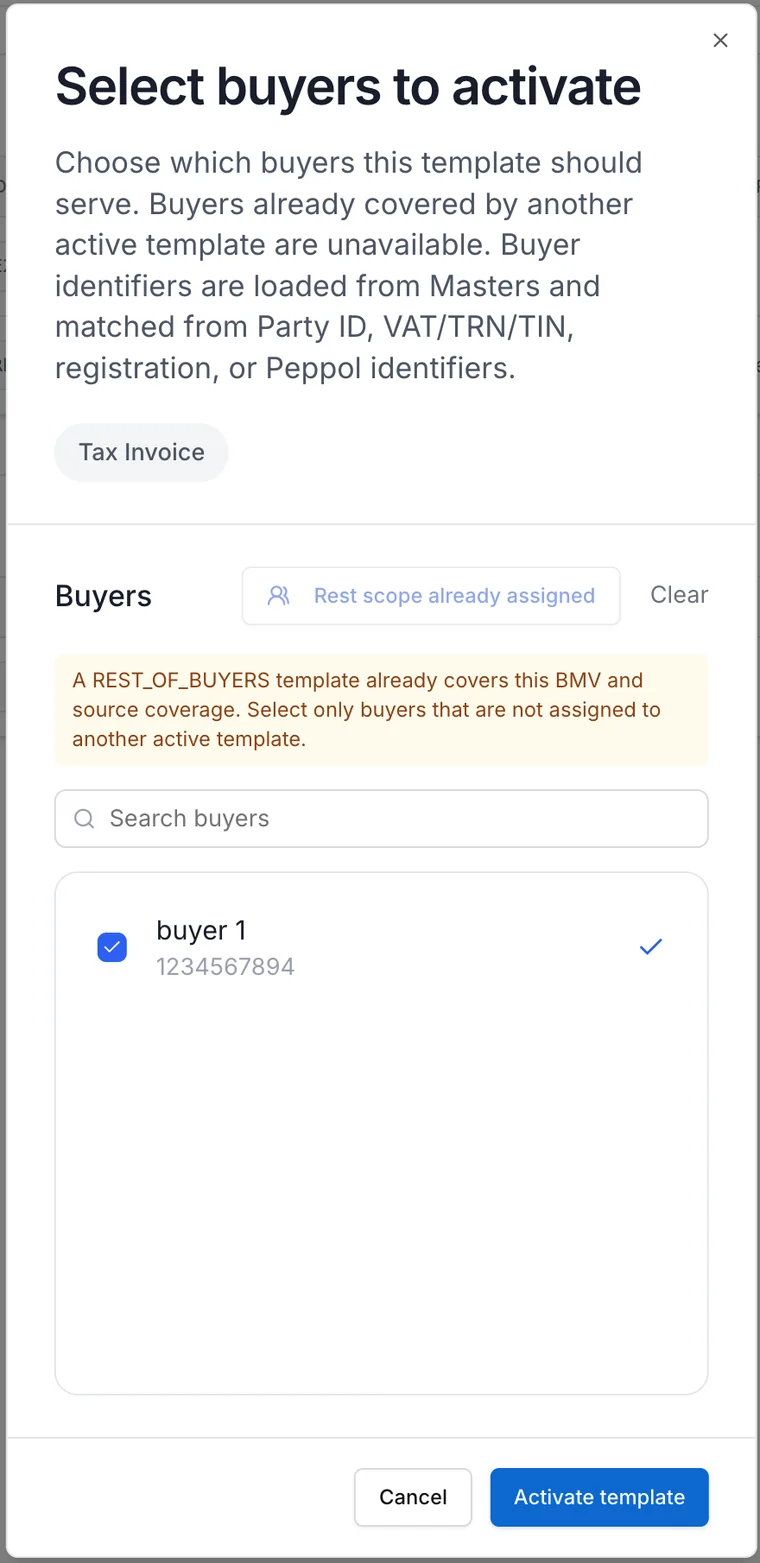
Rest of the buyers is a dynamic group. If you later activate a buyer-specific template, that buyer moves to the more specific design and everyone else stays on the rest-of-buyers template. Only one rest-of-buyers template can cover the same profile and branch scope.
Buyer assignments are kept separate for each Base, modifier and variant combination. The same buyer can therefore use different templates for different document profiles.
Understand Draft and Active status
| Status | What you can do | When it is used |
|---|---|---|
| Draft | Edit the layout, change its scope, preview it, duplicate it or activate it. | Only when a document supplies its PDF_TEMPLATE_ID. |
| Active | Preview it, manage buyers, rename it, duplicate it, deactivate it or delete it. | Automatically for matching new PDF generation, or explicitly by Template ID. |
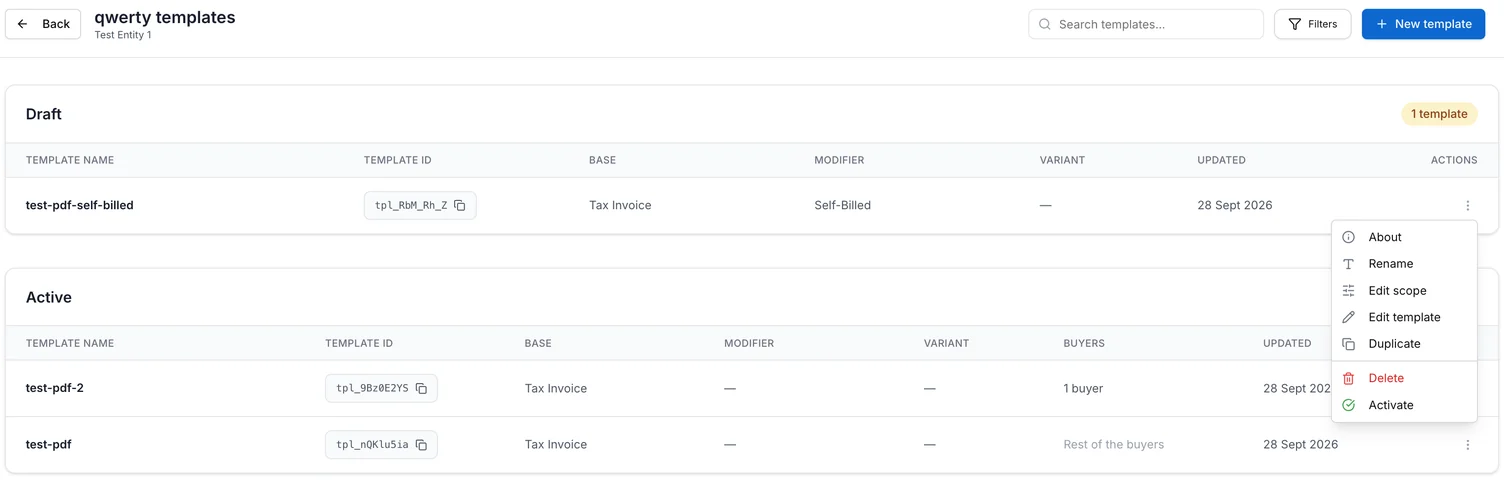
An Active template is read-only. To change its layout, open it and choose Move to draft, or choose Deactivate from its actions menu. It stops applying automatically and its buyer assignments are cleared. Edit and save it, then activate it and select buyers again.
Set a company default
On the main PDF Templates page, choose Company default beside a company. Design and save the layout in the same editor.
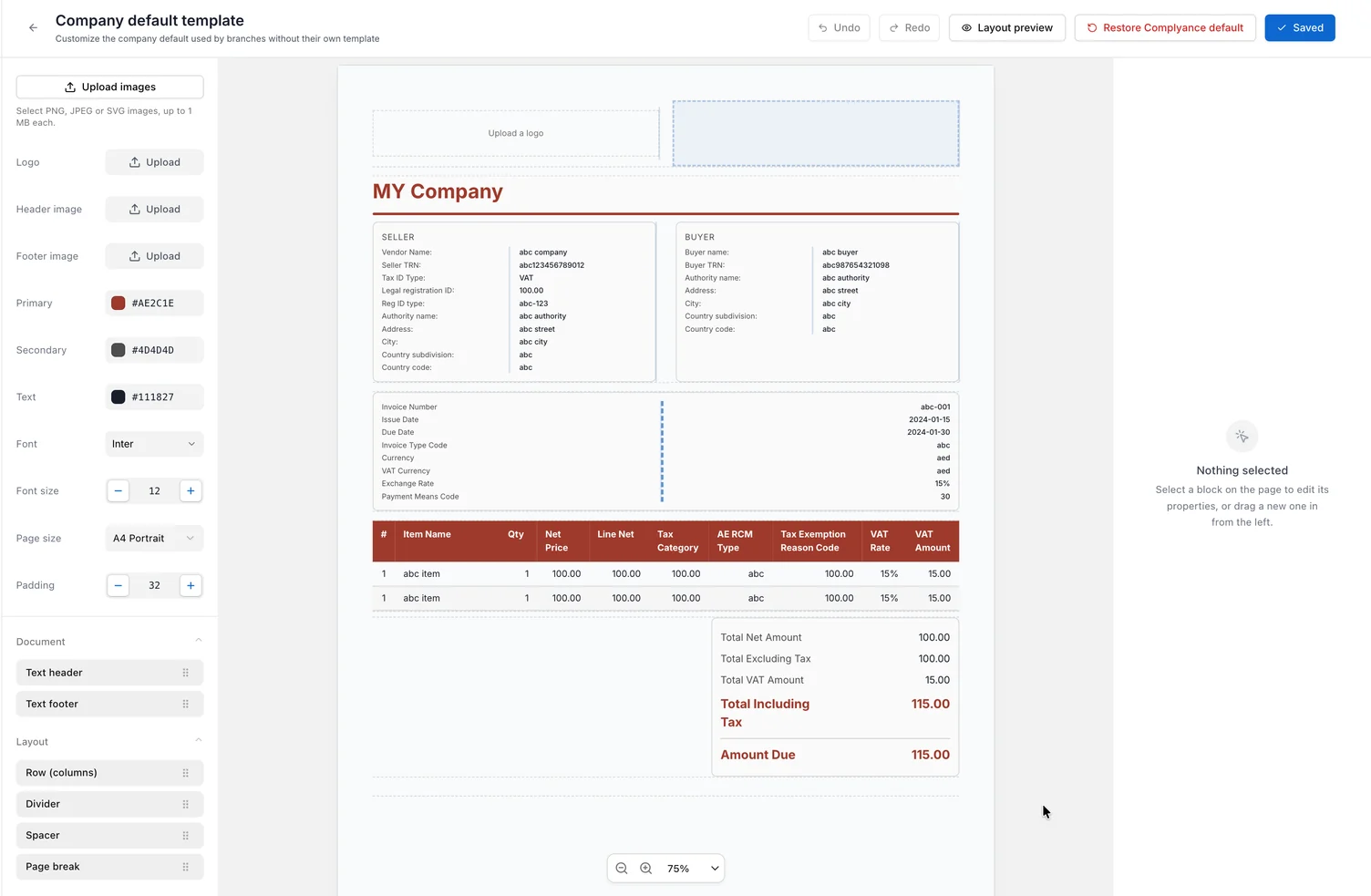
The company default becomes active when you save it. Branches without a matching branch template use it before falling back to the built-in Complyance layout. It does not need buyer assignments.
Choose Restore Complyance default to remove the custom company design and return those branches to the built-in layout.
Work with more than one branch
A template can cover several branches of the same company. When you open that template from one branch and save, activate or deactivate it, Complyance asks where the change should apply:
- This branch only separates that branch so you can manage it independently.
- All branches keeps the shared scope and applies the change everywhere listed.
Check the branch names in the confirmation before continuing. A buyer assignment is evaluated only within the chosen branch coverage.
Rename, duplicate, inspect or delete a template
Open the actions menu beside a template:
- About shows its status, Base, modifiers, variant, buyers and integration mappings.
- Rename changes the display name. Names must remain unique.
- Edit scope changes a Draft’s document profile, branches and integration mappings without removing its design.
- Duplicate copies the design into new Drafts for the companies and branches you select.
- Delete permanently removes the template. This cannot be undone.
Use the search box in a branch’s template list to find a template. Filter or sort by status, Base, modifier, variant or last updated date.
If something goes wrong
| What you see | What to do |
|---|---|
| The company or branch is missing | Check the selected country and environment. Finish onboarding, then link a source to the branch. |
| Template name already exists | Use a different name, or rename the existing template first. |
| No buyers appear | Add buyer records to Masters in the same country and environment, then reopen the selector. |
| A buyer shows Already assigned | Find the other Active template with the same profile and branch coverage. Change its buyer coverage or deactivate it. |
| Rest scope already assigned | Manage or deactivate the existing rest-of-buyers template for that profile and branch coverage. |
| The template cannot be activated | Open the editor and save the design, then select a named buyer or Rest of the buyers. |
| A PDF uses an unexpected design | Check for PDF_TEMPLATE_ID first. Then check the document profile, source, buyer identifiers and the template’s status and coverage. |
PDF generation returns 422 for a requested template | Copy the Template ID again and confirm that the document is sent to the same workspace. |