

Switch country, environment and portal
Change the country you are working in, move between Sandbox and Production, and move between the Invoice Portal and the Developer portal. Everything you see in the app follows these three choices.
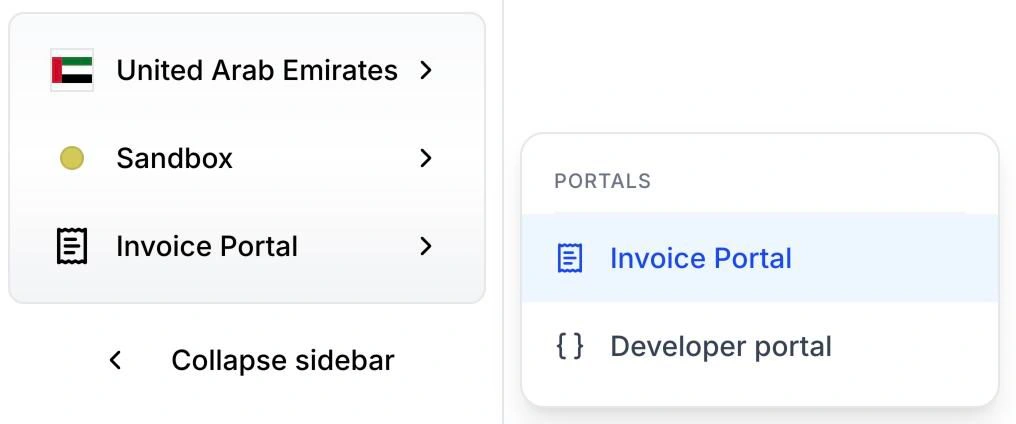
The three switchers sit together at the bottom of the sidebar, above Collapse sidebar. Each shows your current choice; select it to open a menu.
| Switcher | Menu heading | What it changes |
|---|---|---|
| Country | COUNTRIES | Which country’s companies, documents and reports you see |
| Environment | ENVIRONMENT | Whether you work with test data in Sandbox or live data in Production |
| Portal | PORTALS | Whether you are in the Invoice Portal or the Developer portal |
The country and environment switchers are only in the Invoice Portal. The Developer portal has only the portal switcher, and uses the country and environment you last chose in the Invoice Portal. To change them for the Developer portal, switch to the Invoice Portal, change them there, and switch back. When creating an integration, the Integration engine asks for its country separately.
Switch country
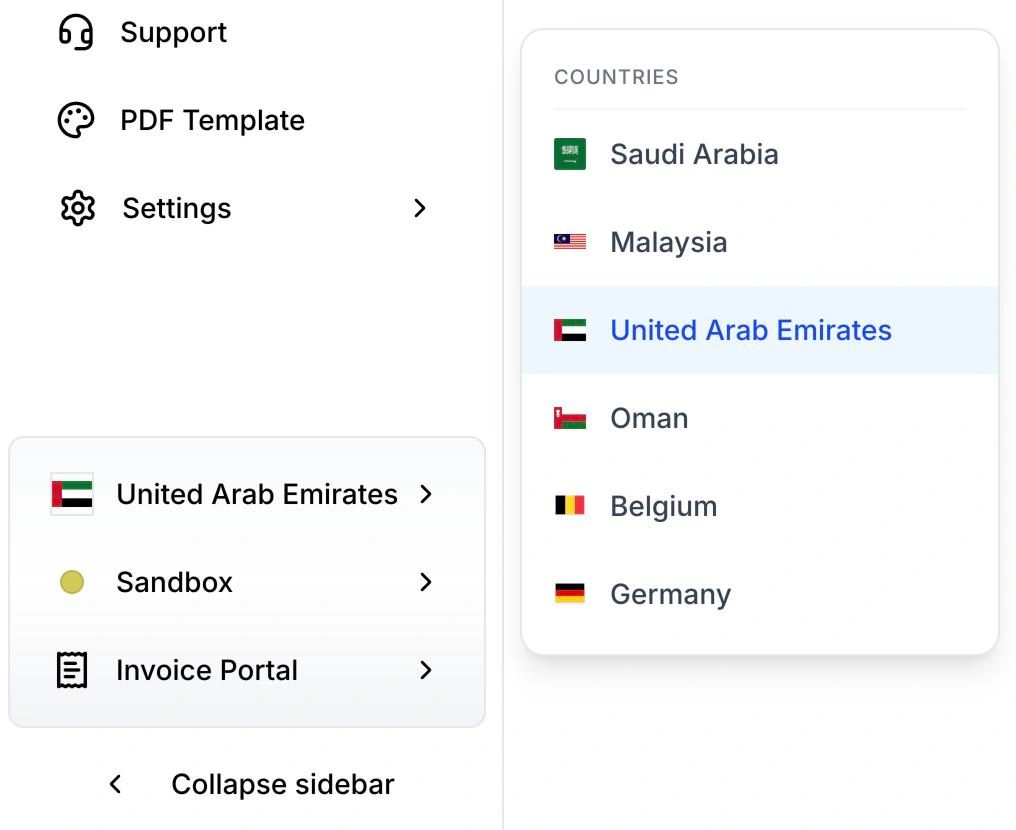
- At the bottom of the sidebar, select the current country.
- Under COUNTRIES, choose the country you want.
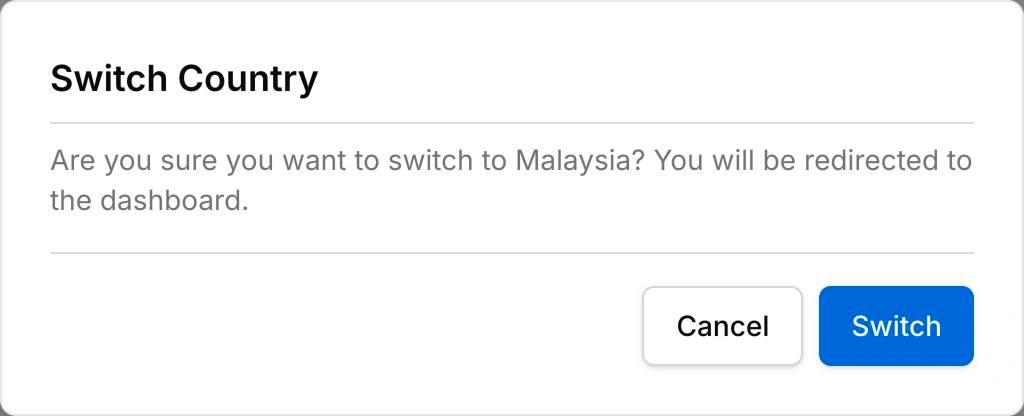
- In Switch Country, select Switch.
You go to the Dashboard for that country. Documents, reports and credits now show that country only.
If your workspace is managed by a partner, a country can be locked. Its tooltip reads “Certification is not completed by your partner for this country”. Ask your partner to complete certification for it.
Switch environment
- At the bottom of the sidebar, select the current environment.
- Under ENVIRONMENT, choose Sandbox or Production.
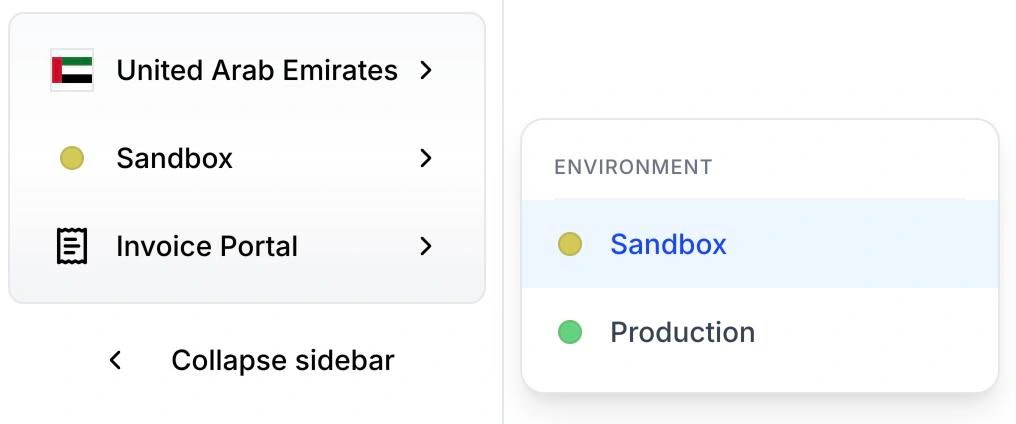
The page reloads with that environment’s data straight away; there is no confirmation. A coloured dot shows which one you are in: yellow for Sandbox, green for Production. Saudi Arabia also offers Simulation, shown with an orange dot.
In Production, your credit balance shows above the switchers.
Switch portal
- At the bottom of the sidebar, select the current portal.
- Under PORTALS, choose Invoice Portal or Developer portal.
The Invoice Portal opens on the Dashboard. The Developer portal opens on the Integration engine.
If you do not see the portal switcher, your role does not include developer access. Ask a workspace Owner or Admin to change your role.
If something looks wrong
- Documents or credits are missing. Check the country and environment. Each pair has its own data, so a document sent to the UAE in Sandbox only appears with United Arab Emirates and Sandbox selected.
- A banner says “You are in Test Mode”. Test Mode is for exploring the app with sample data, and it starts on your first sign-in. When you are done, select Disable Test Mode in the banner, or turn it off in Account Settings. See Environments for how it differs from Sandbox.
Next, see the Dashboard for the country you chose.