

Get help and raise a support ticket
Ask a quick question, raise a ticket with the support team and follow its status. You need to be signed in to the Invoice Portal.
Open Support
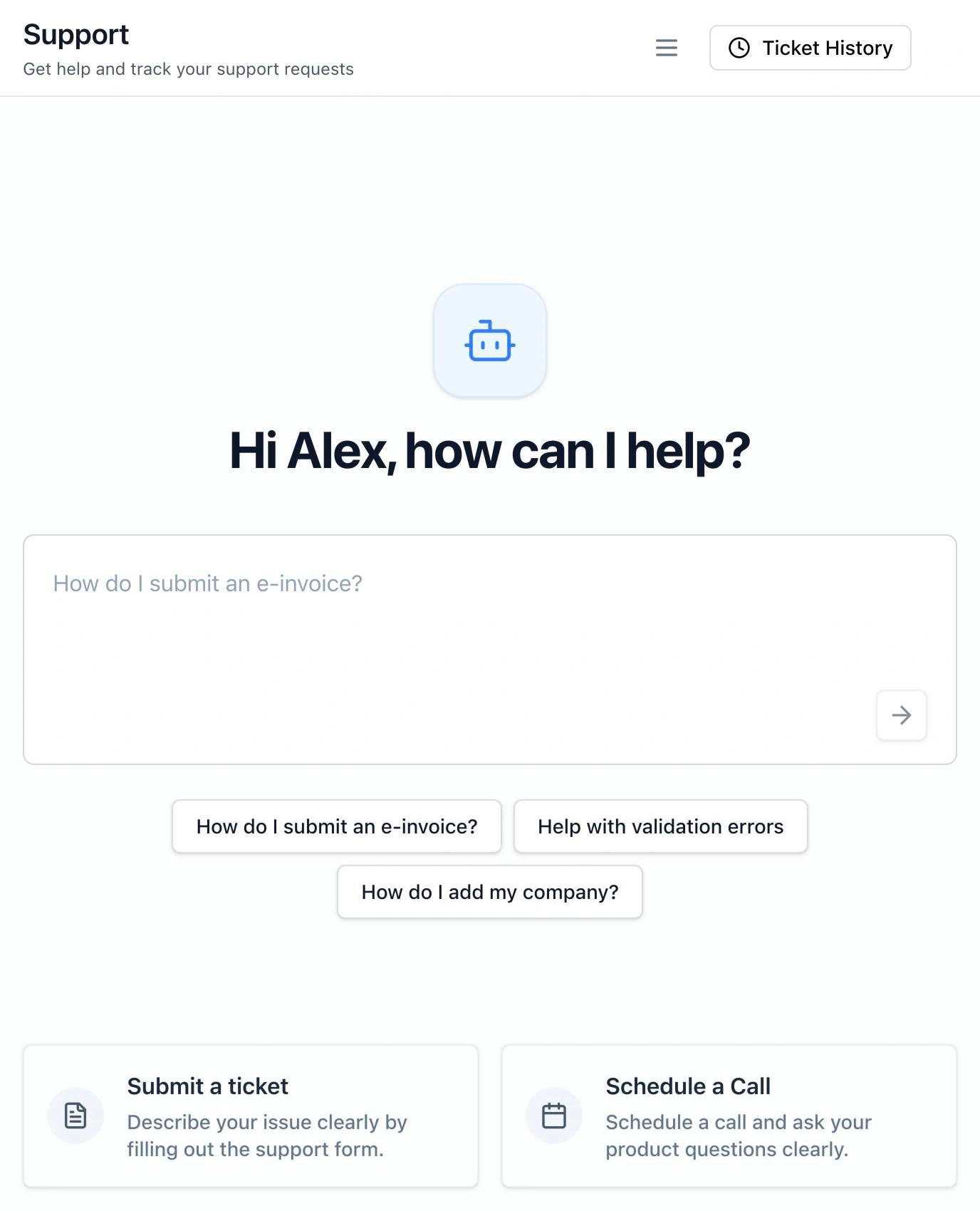
In the Invoice Portal sidebar, select Support. The page has three ways to get help:
- Ask a question. Type it in the chat box, or pick a suggestion such as How do I submit an e-invoice? or Help with validation errors. Start here for how-to questions.
- Submit a ticket. For a problem you need the support team to look at.
- Schedule a Call. Opens a booking page where you choose a time to talk to the team.
Raise a ticket
Open the form
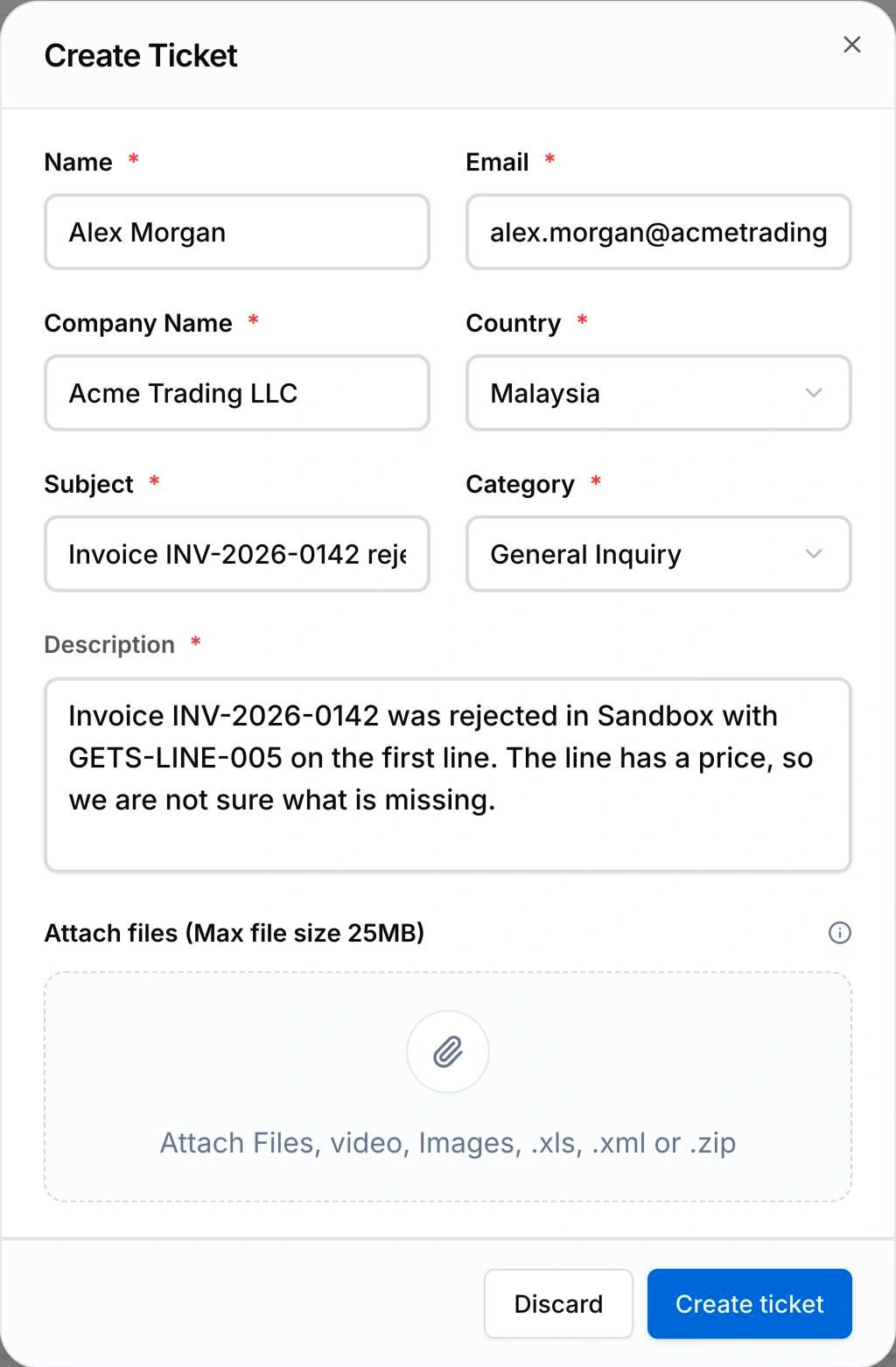
Select Submit a ticket. The Create Ticket window opens with your Name and Email filled in.
Fill in the details
Every field is required.
| Field | What to enter |
|---|---|
| Company Name | The company the problem is about |
| Country | The country you were working in |
| Subject | One line, up to 300 characters |
| Category | Product Issue, Billing Issue, Feature Request or General Inquiry |
| Description | What you did, what you expected and what happened instead, up to 500 characters |
Include the document number and the error code if you have them, such as INV-2026-0142 and GETS-LINE-005. They are the quickest way for the team to find the problem.
Attach a file
Under Attach files (Max file size 25MB), add a screenshot or the payload you sent. You can attach one file; to send several, put them in a .zip.
Create the ticket
Select Create ticket. When it is created, you see “Your ticket has been created”. Select View Ticket to open it.
If you see Failed to create ticket, check that every field is filled in and the attachment is under 25 MB, then try again.
Follow your tickets
Select Ticket History at the top of the Support page. Each row shows the Ticket Number, Category, Created Date and Status. Select View to open a ticket and see its details, attachment and status timeline.
| Status | Meaning |
|---|---|
| Open | Received, not yet picked up |
| In Review | The team is looking into it |
| In Progress | The team is working on a fix or an answer |
| Resolved | The team has answered or fixed it |
| Closed | Finished |