

Search, filters and views
Find a document by number, status, type, date or amount. Save the columns you need as a view so you can return to the same layout.
Use the controls above the Sales Documents or Purchases Documents list. Search, filters, sorting and views change the list you are looking at; they do not change the documents.
Search by document number
Type a document number in Enter document number at the top right. The list updates as you type. If nothing matches, it shows No matching documents.
Choose Reset to clear the document-number search together with the filters on the current view.
Filter the list
Use the quick filters above the table for the fields you use most often. Choose Filters for the complete list.
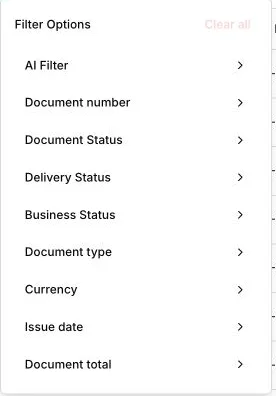
| Filter | What you can choose |
|---|---|
| Document number | A document number. |
| Document Status | One or more document statuses, such as Needs Correction or Compliant. |
| Delivery Status | One or more delivery statuses, such as Pending or Delivered. |
| Business Status | One or more receiver-response statuses, when the selected country supports them. |
| Document type | One or more invoice or credit note types. |
| Currency | One or more document currencies. |
| Issue date | A start date, an end date, or both. |
| Document total | A minimum amount, a maximum amount, or both. |
You can combine filters. The number on Filters shows how many are active. Choose Clear all in Filter Options, or Reset above the table, to remove them.
Describe filters in plain language
Choose Filters, then AI Filter. Enter a request such as Document total above 1000 or This month issue date, then choose Apply filters. Check the active filter chips above the table to confirm that the request produced the filters you expected.
If the result is too broad, add a status, date, amount or currency to the request. You can also set each filter yourself from Filter Options.
Sort and page through results
Choose a column heading with sort arrows to sort by that column. Choose it again to reverse the order. A third choice removes the sort.
Use the controls below the table to move between pages and choose how many rows to show. Status and company columns are not sortable.
Save a view
A view is a saved way of looking at a document list. Default Sales View and Default Purchase View are available from their respective lists.
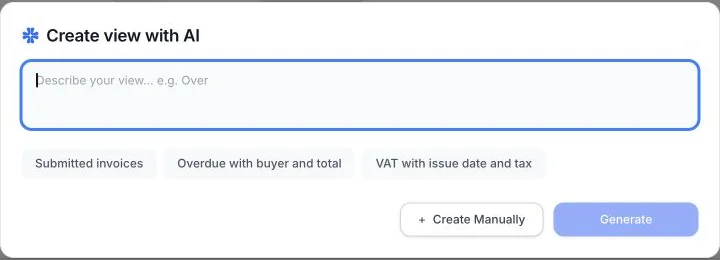
Create a view with AI
- Choose Create view.
- Describe the information the view should show, or choose one of the suggestions.
- Choose Generate.
- Review the fields and preview, enter a view name and description, then choose Save.
Create a view manually
- Choose Create view, then Create Manually.
- Enter a View Name and View description.
- Under Field Categories, select the fields to include. Invoice number is required and cannot be removed.
- Check the Preview, then choose Save.
The saved view appears as a tab above the list. Choose Edit view to change the current view. Use the close button on a custom view’s tab to delete it; the default views cannot be deleted.