

Check your credit balance and usage
See how many credits remain and find the transactions behind changes to your balance. You need a One Platform workspace where Credits is available.
Open Credits
- Sign in to One Platform and open the Invoice Portal.
- Check the selected workspace, country and environment in the sidebar.
- Select Credits in the sidebar.
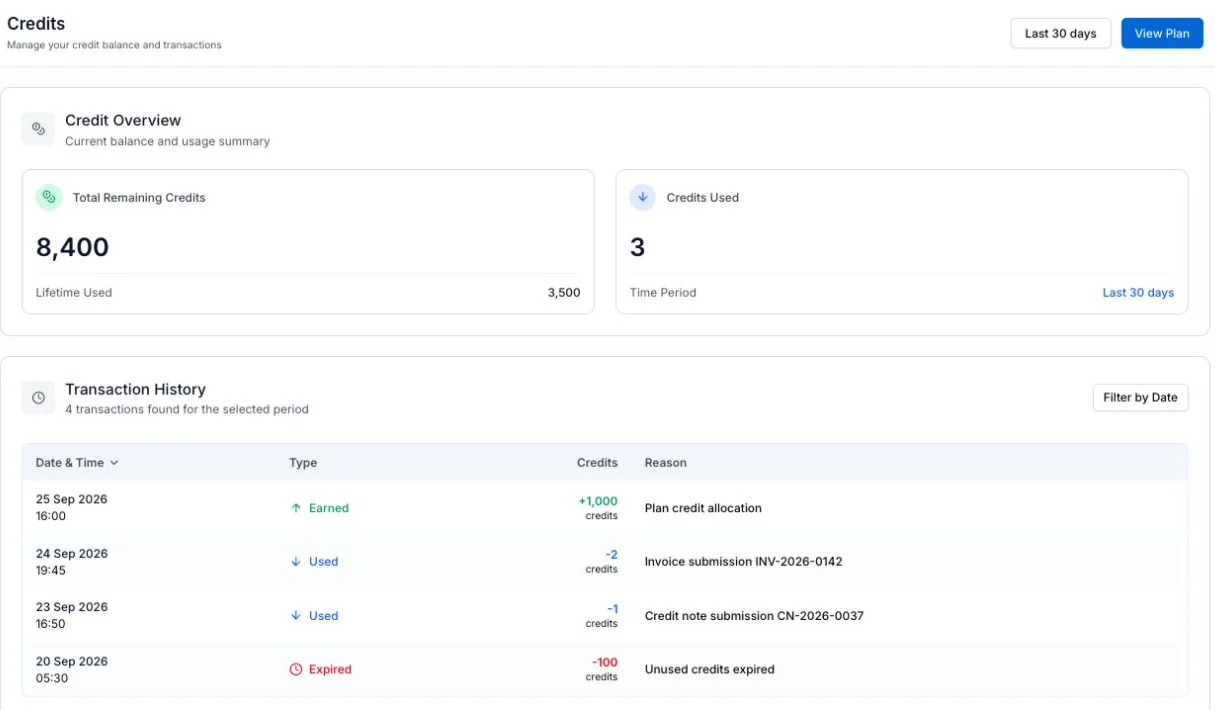
You should see Credit Overview and Transaction History. The balance, usage and transactions follow the selected country and environment. If the figures are not the ones you expect, check the country and environment.
How credits work
Credits pay for what you do in Production:
- Sending a document uses credits. The Create invoice form shows an estimate of the credits a document of that type uses.
- Generating a report uses credits for the rows it contains. The report shows an estimate before you export it.
Sandbox does not use credits. That is why the balance and the credit indicator above the sidebar switchers appear only in Production. The indicator turns amber when less than half your credits remain, and red below 20%.
Credits come with your plan or an add-on purchase. Each purchase has an expiry date, shown on the Subscription page. Credits still unused on that date expire and appear in Transaction History as Expired.
Credits or Limits
If your workspace is managed by a partner, such as an accounting firm, and the partner holds the credits, the page is called Limits instead. It shows Limit Overview, Total Remaining Limits and Limits Used. A limit is the share of your partner’s credits assigned to you, for a period that ends on its expiry date. Ask your partner for a higher limit; you cannot buy credits yourself.
Read the balance and usage
| On the page | What it tells you |
|---|---|
| Total Remaining Credits | The credits currently available to the workspace in the selected environment. Lifetime Used below it counts every credit used so far. |
| Credits Used | Credits used for the selected time range. |
| Time Period | The range used for the Credits Used figure. |
| Transaction History | Entries that added, used or expired credits in the selected country and environment. |
In production, use the time range selector at the top of the page to choose Today, Last 7 days, Last 30 days, Last 90 days, This month, This year or All time. Last 30 days is selected when you first open the page. The Credits Used figure and transaction list update for that range. The time range selector and the Date & Time transaction column are not shown in Sandbox.
The Total Remaining Credits figure is the current balance. Changing the time range does not change that figure.
Find a change to your balance
Read the Transaction History table below the overview. Each row shows a Type, the number of Credits, and a Reason. In production, it also shows Date & Time.
| Type | What it means |
|---|---|
| Earned | Credits added, for example from a plan or a purchase, or credits returned. Shown with a plus sign. |
| Used | Credits used by a document or a report. Shown with a minus sign. |
| Expired | Credits that reached their expiry date unused. Shown with a minus sign. |
Select Date & Time or Credits in the table header to change the sort order. Select the same heading again to reverse it. If there are no entries in the selected range, the table says No credits transactions found for the selected time period. Choose a longer range to look further back.
If something looks wrong
- The balance is different from what you expected. Check the selected workspace and environment. Then review Transaction History for credits that were used or expired.
- Credits is not in the sidebar. Check that you are in the Invoice Portal and have selected the intended workspace. If it is still missing, ask your workspace administrator whether Credits is available for your workspace.
- A transaction is missing. Check the selected country and, in production, choose a longer time range. The page shows transactions for the selected country and environment.
- You need more credits. Select View Plan. See Get more credits.
Get more credits
Select View Plan at the top of the Credits page. Plans & Pricing opens.
- Choose Pay Monthly or Pay Annual.
- On a plan card, choose Purchase Now. Your current plan shows Current Plan; another plan offers Change Plan.
- For a custom plan, choose Contact Us.
When you change plan, choose when it applies:
- Take Effect Immediately: you are billed for the new plan now, and all your current credits expire.
- Schedule Plan Change: the new plan starts on your next billing date. Your current plan and credits stay active until then.
If your workspace is managed by a partner, Plans & Pricing says Your workspace is managed by a partner. Purchases are handled by your partner: contact your partner admin.
Manage your subscription
Owners and Admins open Settings, then Subscription. It is hidden while Test Mode is on.
Subscription Management shows your plan with its START DATE, EXPIRY DATE and STATUS, and whether it is an Active Subscription. Its Transaction History lists every subscription period and purchase, with the Amount in USD, Purchase date, Expiry date and Allotted credits.
| Button | What it does |
|---|---|
| Credits Usage | Opens the Credits page |
| Manage Subscriptions | Opens your billing account in a new tab |
| Upload Proof | Upload proof of a bank payment |
| View Plans | Opens Plans & Pricing |
Next, see Documents to follow the invoices using your credits.