

Give a customer portal access
Let a customer view their own documents and reports in One Platform. You need permission to manage access for that customer in your ISV workspace.
Find the customer
In the ISV Client Portal, open Customer access. Search for the customer and check its country, environment, document flows and connection status before changing access.
A company’s invoicing onboarding and a person’s portal access are separate. An onboarded company does not automatically give every employee a login.
Open Manage access
Choose the row’s Manage portal access action. The dialog explains that access is restricted to this customer workspace.
Review Documents module and Reports module. Documents access lets the customer view their own documents; reports access lets them view and export their own reports. Enable only the modules the customer needs.
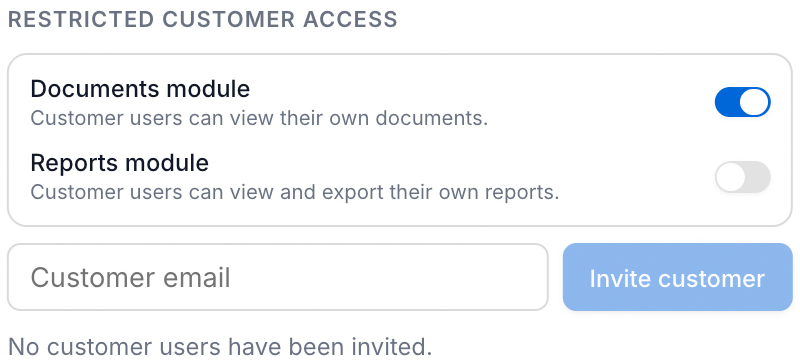
Invite the customer user
Enter the intended recipient in Customer email, then choose Invite customer. Check the invitation or user status shown in the dialog. The recipient must complete the invitation before using their access.
The invitation applies to this customer’s workspace. It does not grant access to your other managed customers.
Review access later
Return to Manage access to review users and their access state. Use the available grant or revoke actions for the intended user. Check the updated state after each change.
If something goes wrong
The customer is missing: check the search, country, environment and status filters, then confirm you are in the intended ISV workspace.
The user cannot see a module: check the customer’s module settings and the user’s invitation/access state.
The user sees no documents: confirm the customer, environment and document scope before changing permissions.
Next, use the ISV portal to review the customer’s onboarding and documents.