Reconcile an ERP export
Reconcile an ERP export with documents submitted through Complyance. You need the export for the selected country and environment, plus a new or saved column mapping.
Start a reconciliation
Open Reconciliation in the Invoice Portal and choose Start reconciliation.
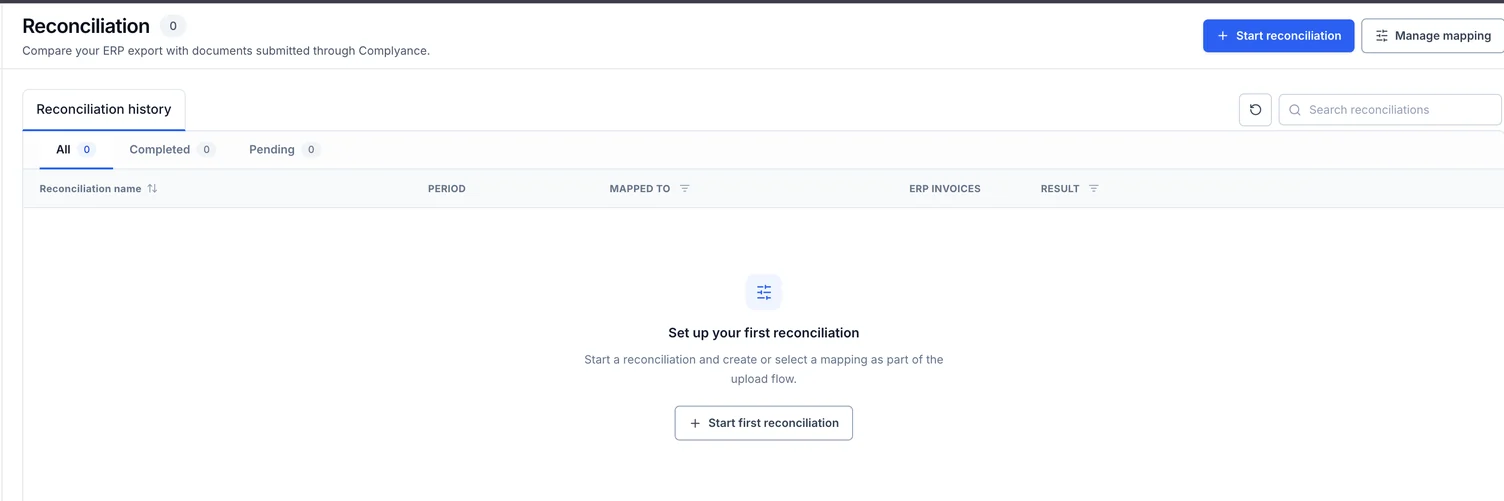
Enter a unique Reconciliation name. Then choose how to map the spreadsheet columns:
- Choose a completed mapping when the export has the same column layout as a previous run.
- Choose Create new mapping and enter a unique Mapping name for a new layout.
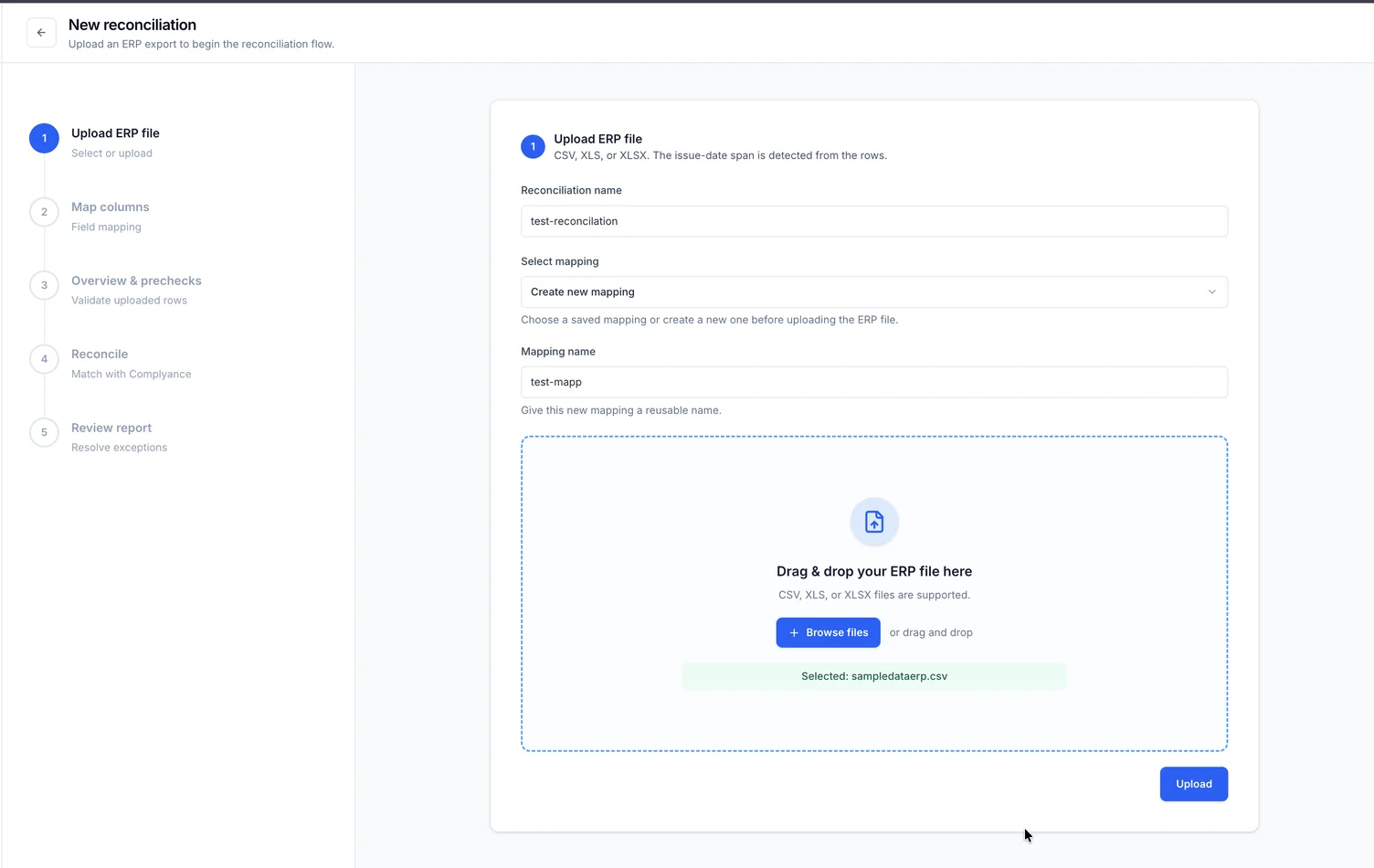
Drop the export into the upload area, or choose Browse files, then choose Upload. The file review shows the file name, reconciliation name and number of rows detected.
Confirm the uploaded file
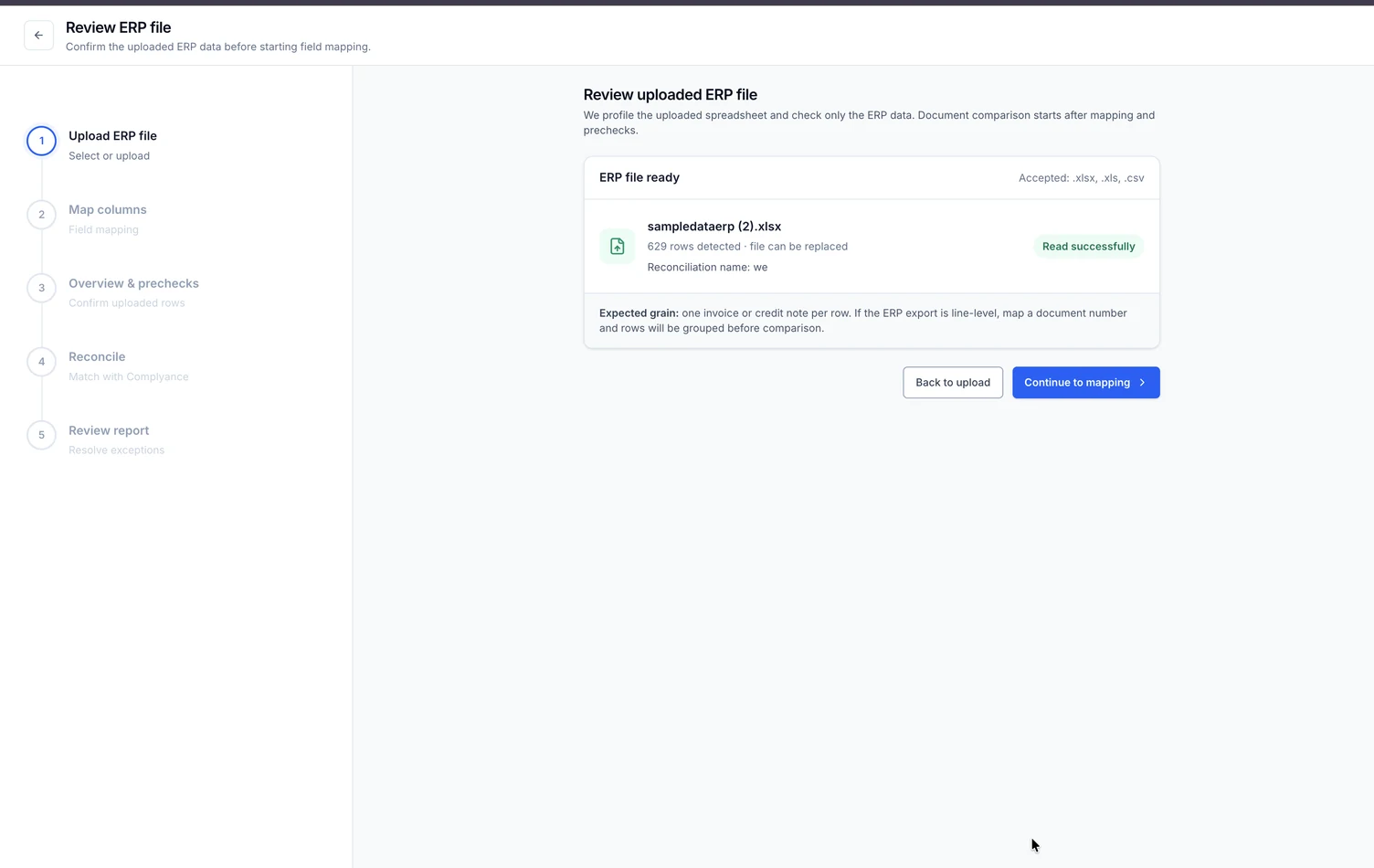
Check the file name and row count on Review uploaded ERP file. Choose Back to upload if you selected the wrong file. You can replace the file without starting another reconciliation.
The expected layout is one invoice or credit note per row. A line-level export also works: map Document Number and Line Item ID so rows from the same document can be grouped before comparison.
Choose Continue to mapping.
Map the ERP columns
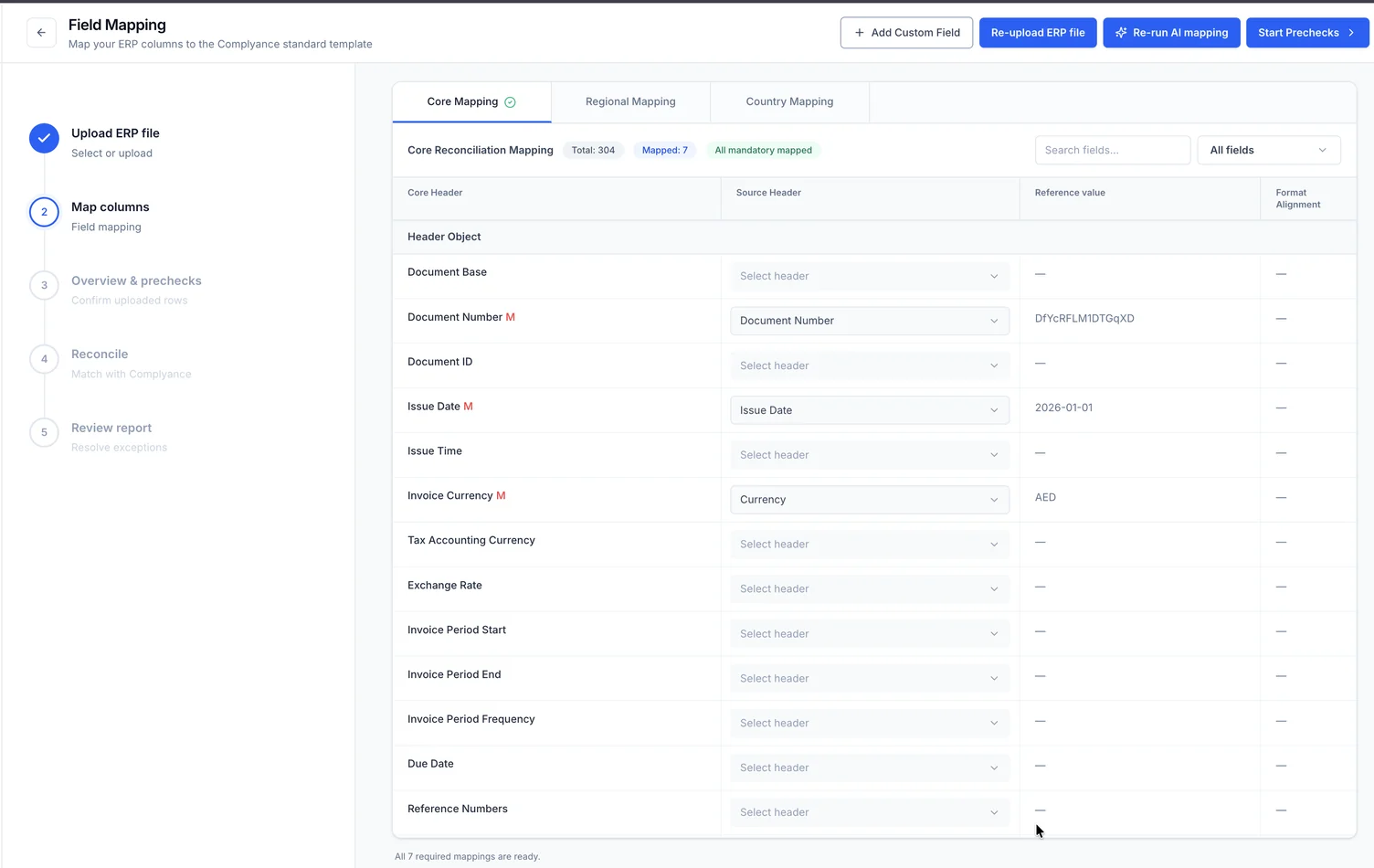
Complyance suggests mappings for a new layout. Check every suggestion against the Reference value, then select a different Source Header where needed. Use the field search or the Mandatory only, Mapped only and Unmapped only filters to narrow the list.
All seven mandatory fields, marked M, must be mapped:
| Field | What it is used for |
|---|---|
| Document Number | Identifies the invoice or credit note. |
| Issue Date | Sets the period covered by the run. |
| Invoice Currency | Compares the document currency. |
| Line Item ID | Distinguishes rows within the same document. |
| Total Amount Excluding Tax | Compares the amount before tax. |
| Total Tax Amount | Compares the tax amount. |
| Total Amount Including Tax | Compares the final amount. |
Map any other fields that you want to compare. Choose Re-run AI mapping to refresh the suggestions for a new mapping, or Re-upload ERP file to replace the source data.
When the page says All mandatory mapped, choose Start Prechecks. A new mapping is saved under the mapping name, so you can select it in another reconciliation.
Review the prechecks
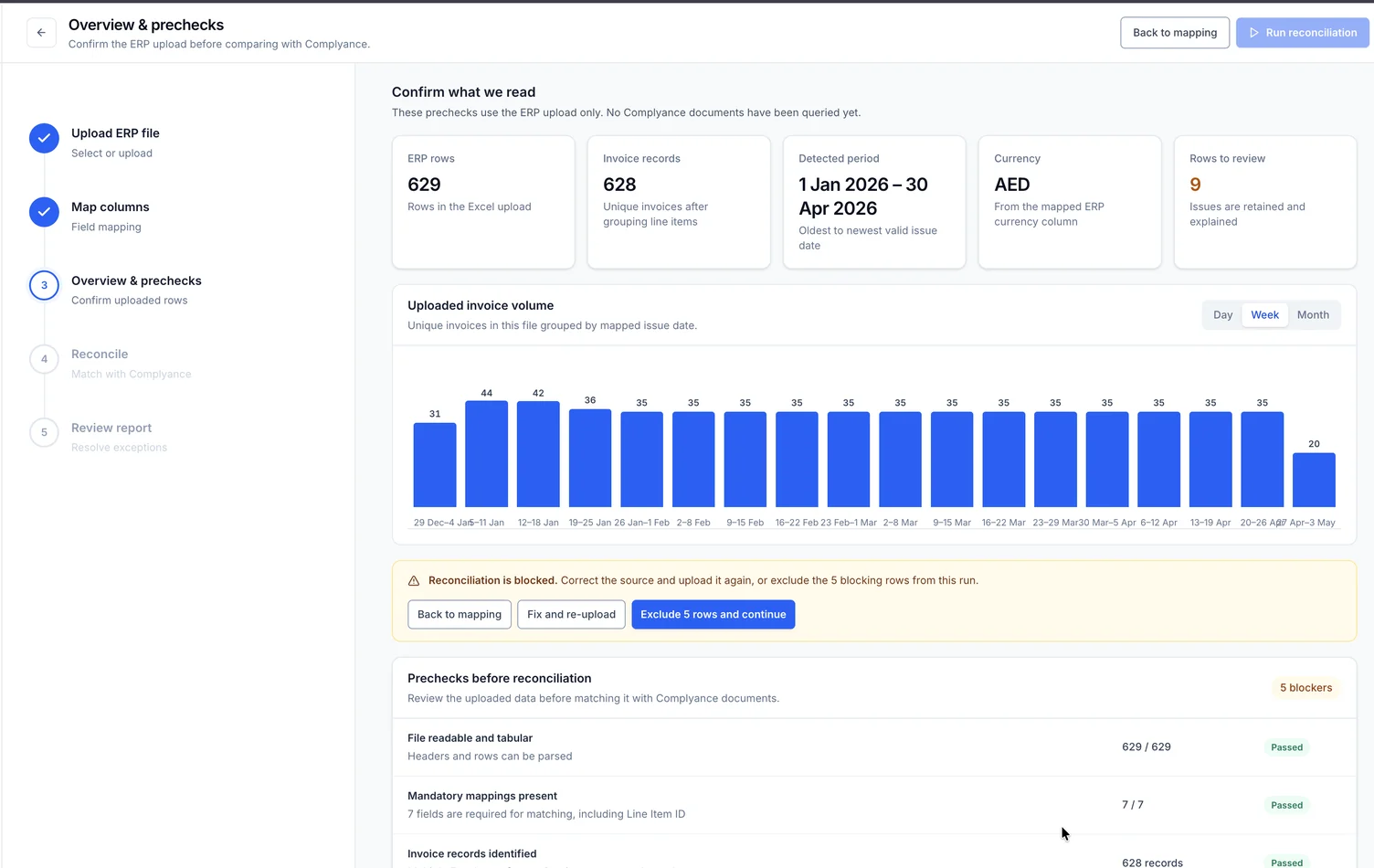
The overview shows the number of ERP rows, the number of invoice records after line items are grouped, the detected issue-date period, currencies and rows that need review. The volume chart can group the uploaded invoices by day, week or month.
Open an issue to see its ERP row numbers. Prechecks treat issues in two ways:
| Result | What it means | What to do |
|---|---|---|
| Blocked | A row has no document number, no line item ID, or no valid issue date. | Correct the export and choose Fix and re-upload, or choose Exclude rows and continue. |
| Review | A row has a duplicate document and line ID, an invalid currency or amount, or amounts that do not balance. | Check the row. It stays in the run and is explained in the report. |
| Passed | The file is readable, all mandatory mappings exist and invoice records were identified. | No action is needed. |
Excluding a blocking row removes that row from this comparison only. The report keeps a separate Excluded result so you can account for it.
Run the comparison
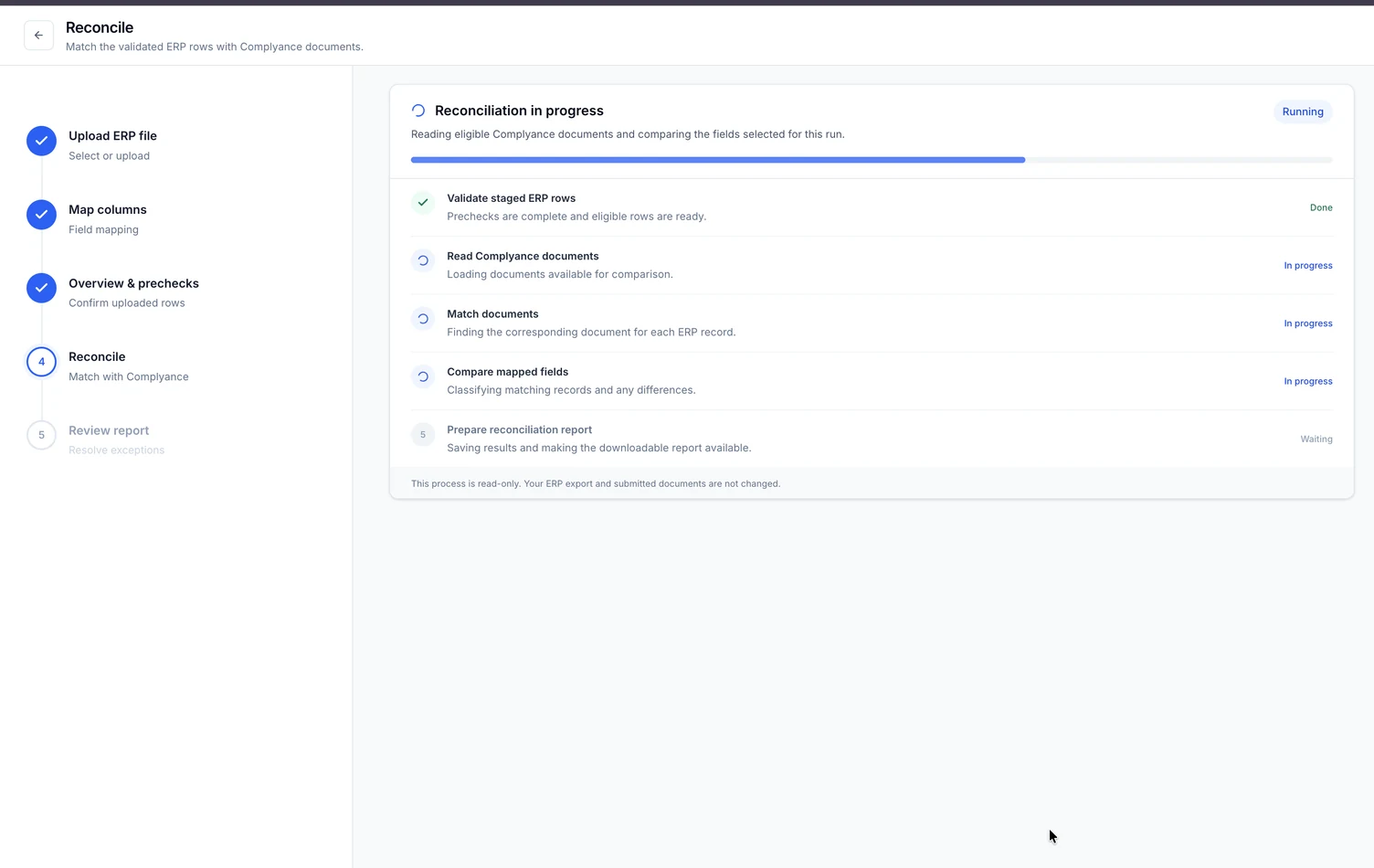
Choose Run reconciliation. The page moves from Queued to Running while it reads the submitted documents, matches them to the eligible ERP records and compares the mapped fields.
You can leave the page while it runs. Open Reconciliation history later and choose Continue reconciliation to return to it.
Review and download the report
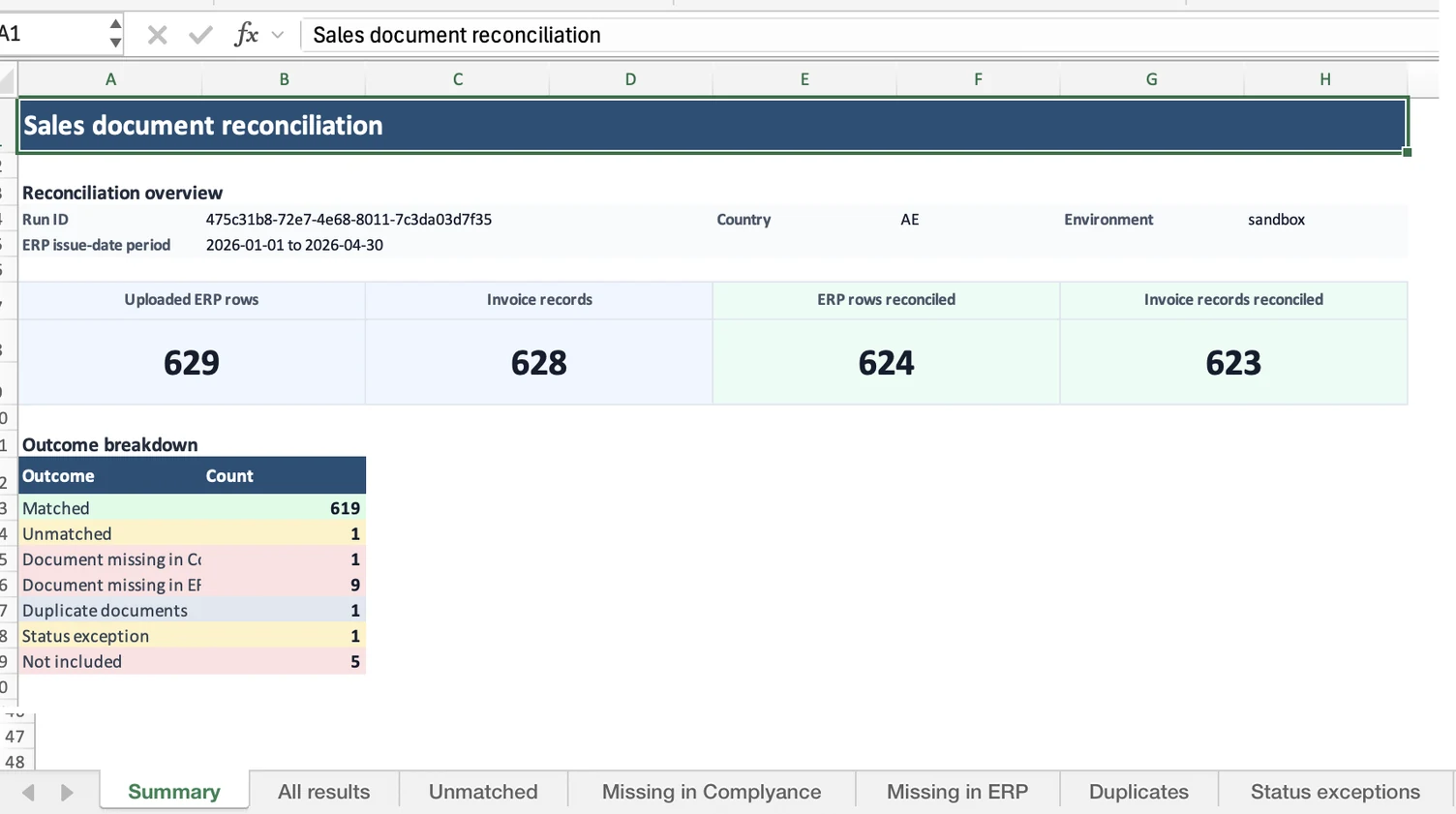
When the run finishes, choose Review report. The overview shows ERP rows reconciled, invoice records reconciled and the percentage matched.
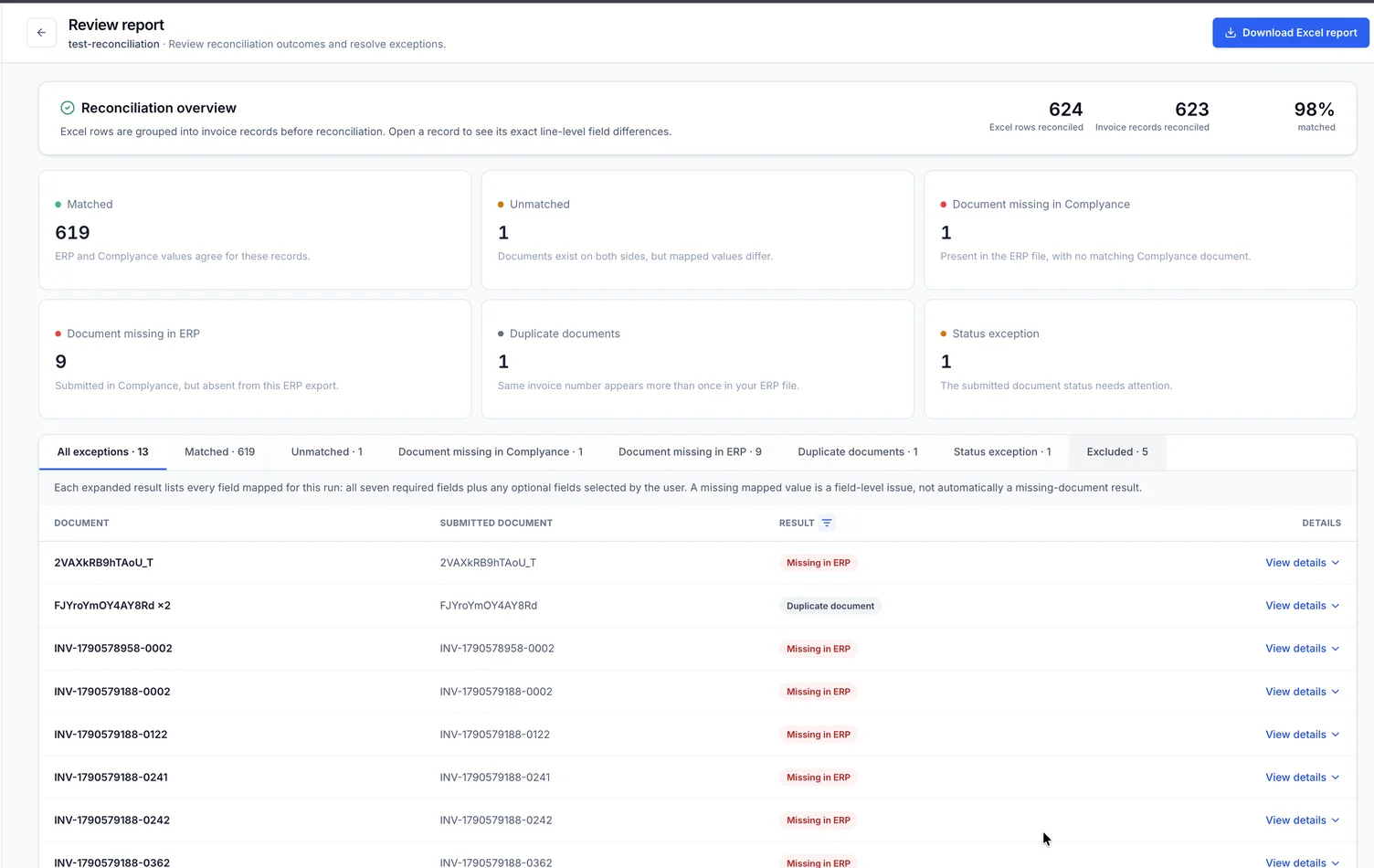
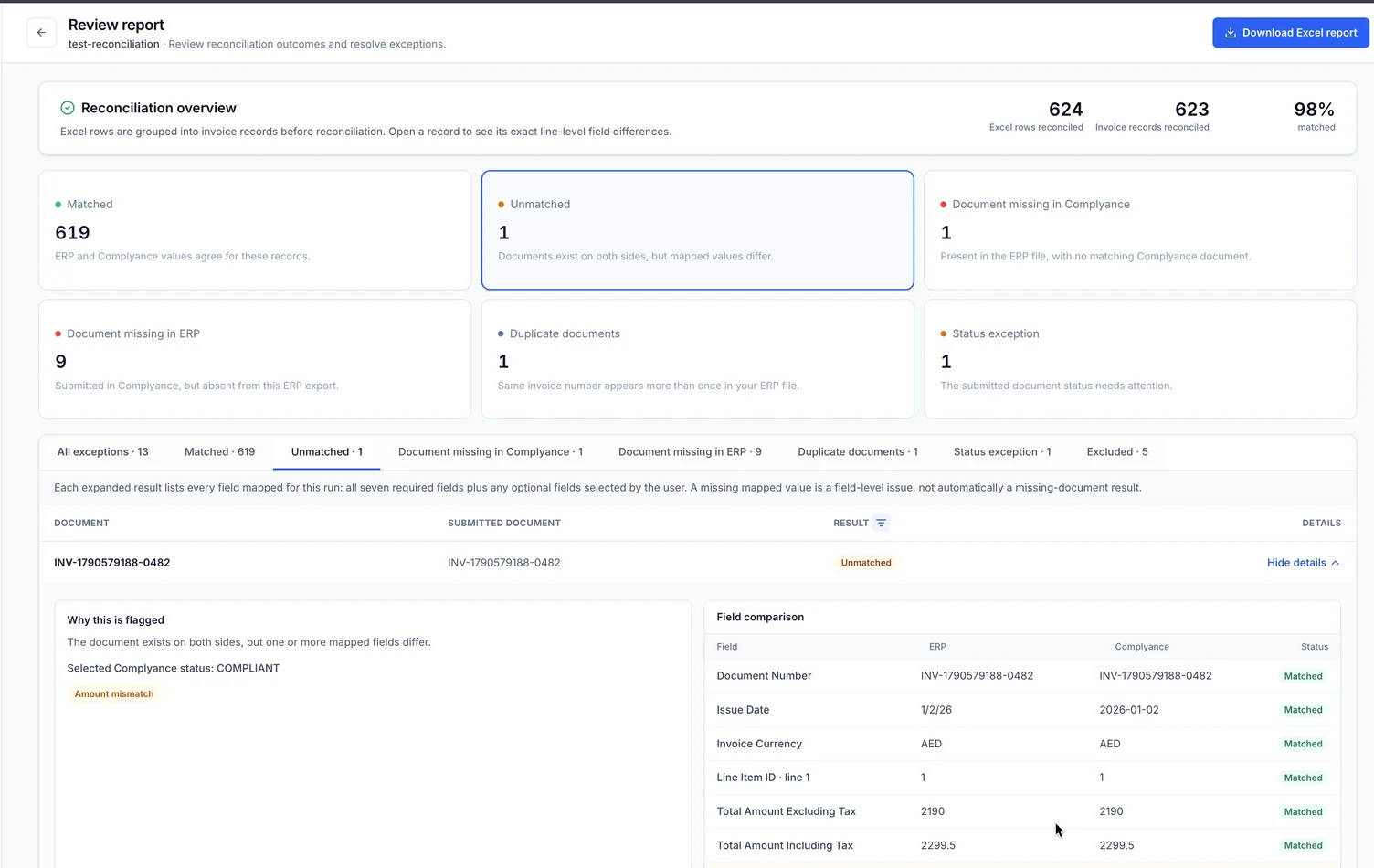
Choose a result card or tab to filter the table. Choose View details on a record to see why it was flagged and compare every mapped value in the ERP export with the submitted document. Line-level differences include the line item ID.
Choose Download Excel report to save the full report as an XLSX file.
Understand the results
| Result | Meaning |
|---|---|
| Matched | The mapped ERP and Complyance values agree. |
| Unmatched | A document exists on both sides, but one or more mapped values differ. |
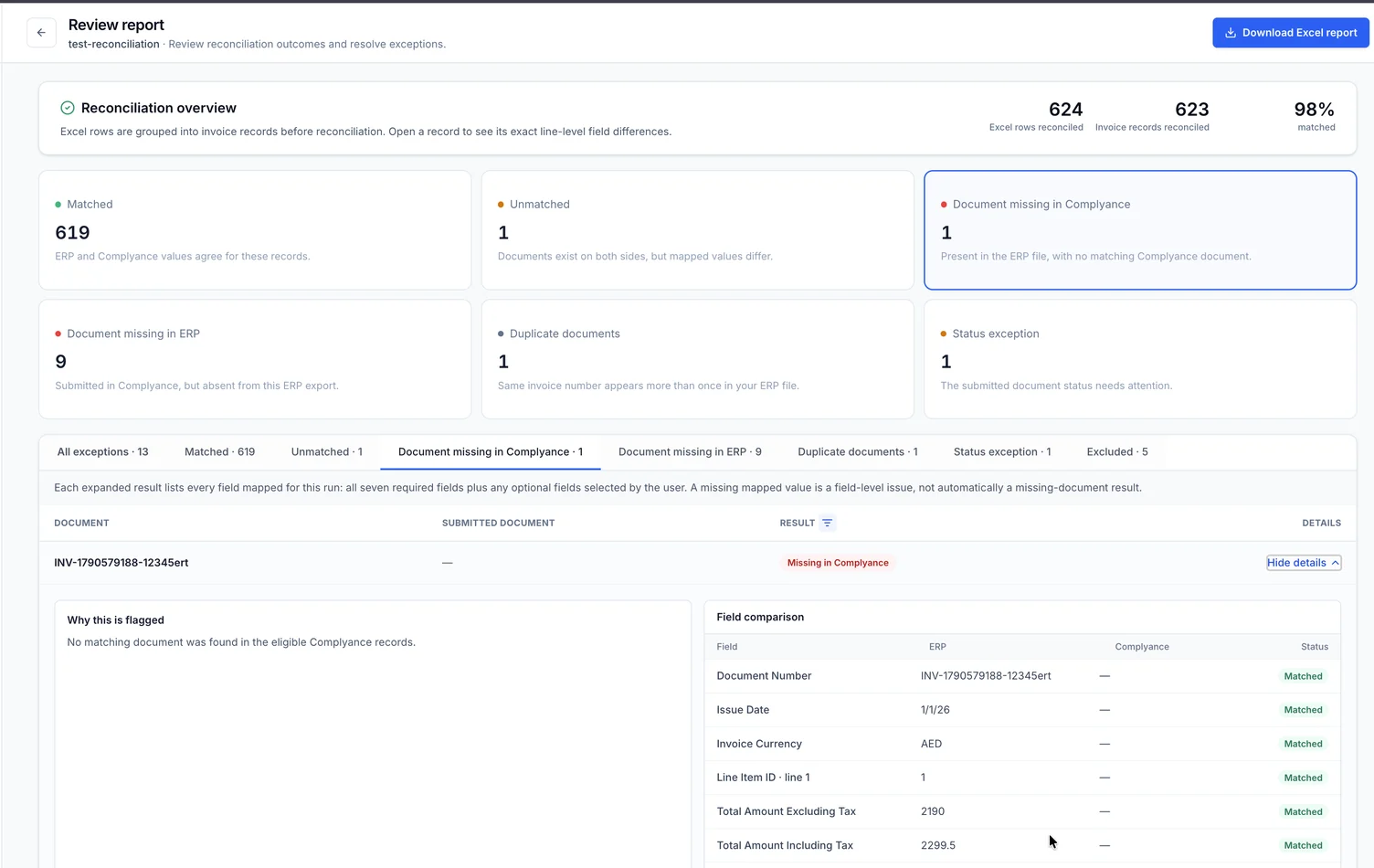
| Missing in Complyance | The ERP export contains the document, but no eligible submitted document was found. |
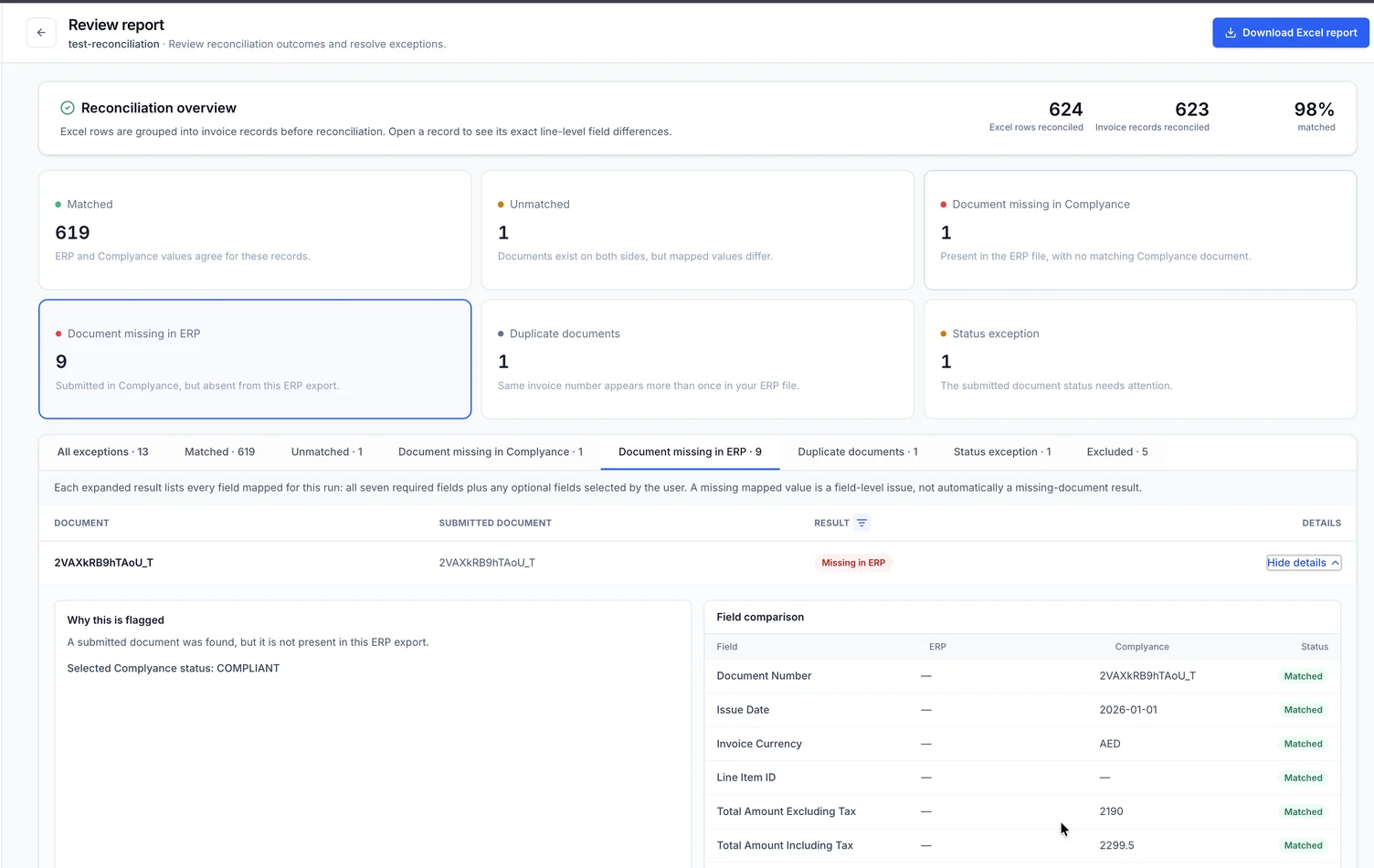
| Missing in ERP | A submitted document was found, but it is not in this ERP export. |
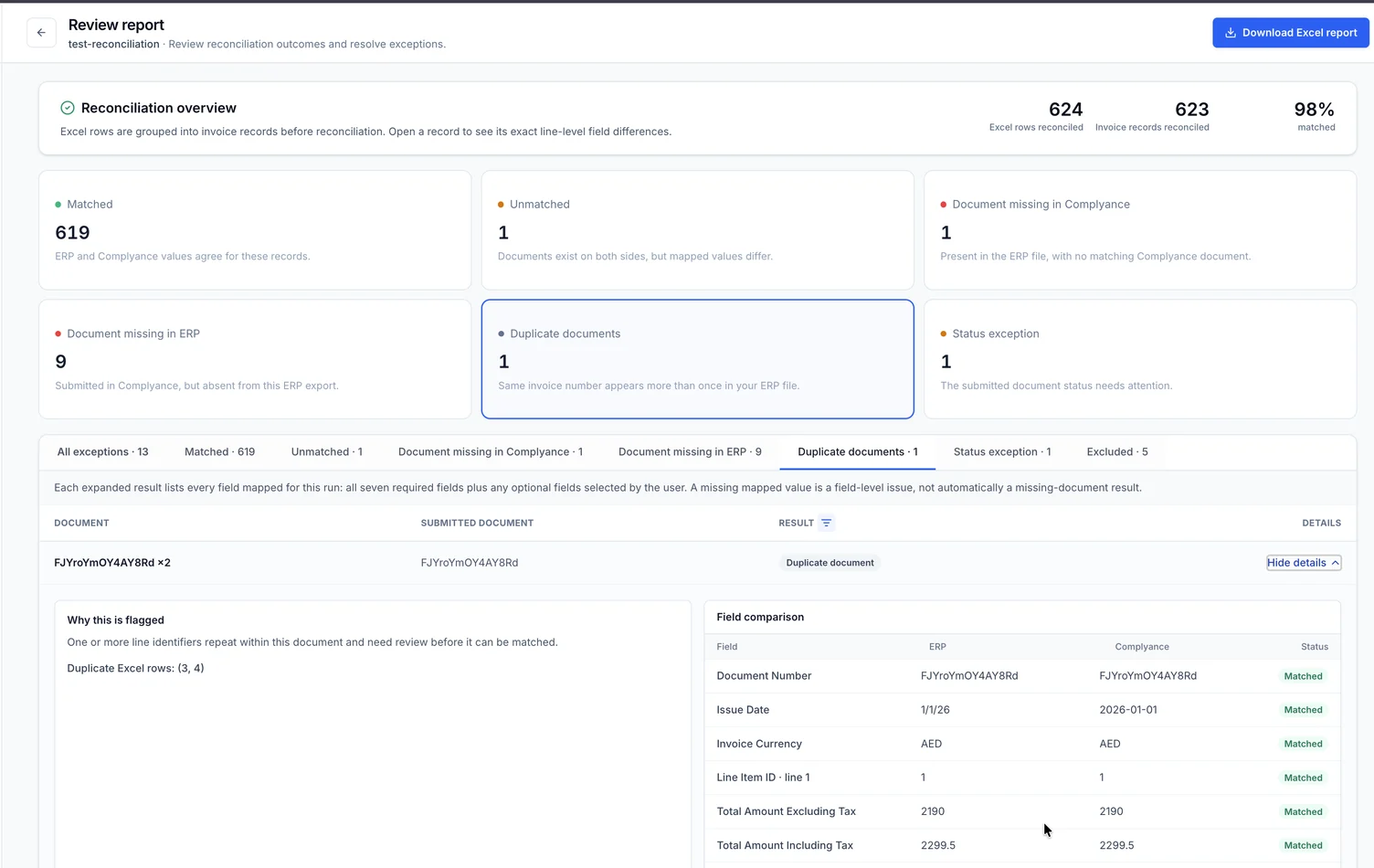
| Duplicate document | The same document number and line item ID appear more than once in the ERP export. |
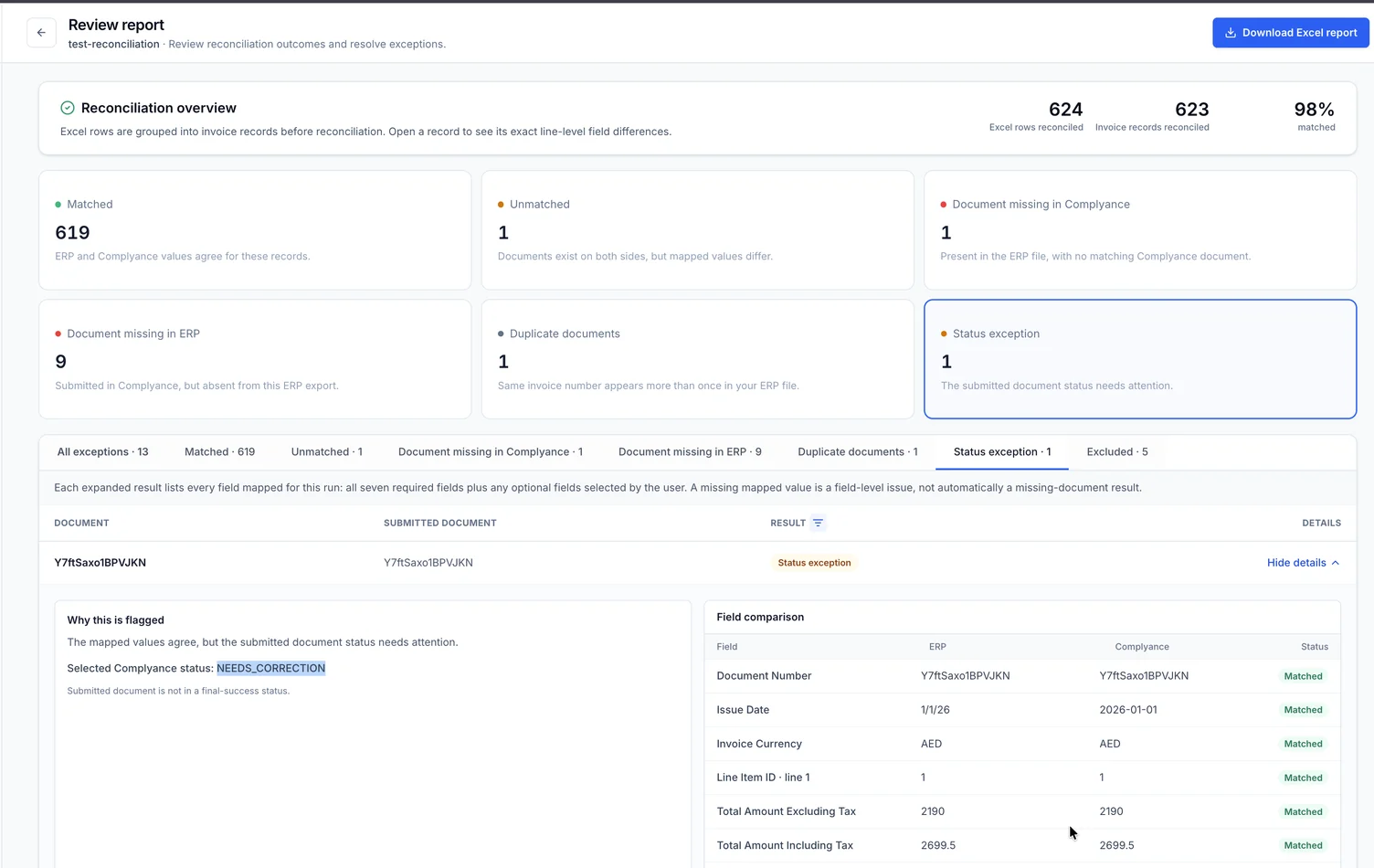
| Status exception | The mapped values agree, but the submitted document’s status needs attention. |
| Excluded | A blocking precheck kept the ERP row out of the comparison. |
The report opens on All exceptions. A missing value in one mapped field is a field difference; it does not by itself mean the whole document is missing.
Examples of exception details
For Missing in Complyance, the ERP document is shown while the submitted-document side is empty.
For Missing in ERP, the submitted document is shown while the ERP side is empty.
For Duplicate document, the explanation identifies the repeated spreadsheet rows.
For Status exception, the values can match even though the submitted document is not in a final-success status.
Continue or manage previous runs
Reconciliation history is scoped to the country and environment selected in the sidebar. Search by reconciliation name, or use All, Completed and Pending to filter the list.
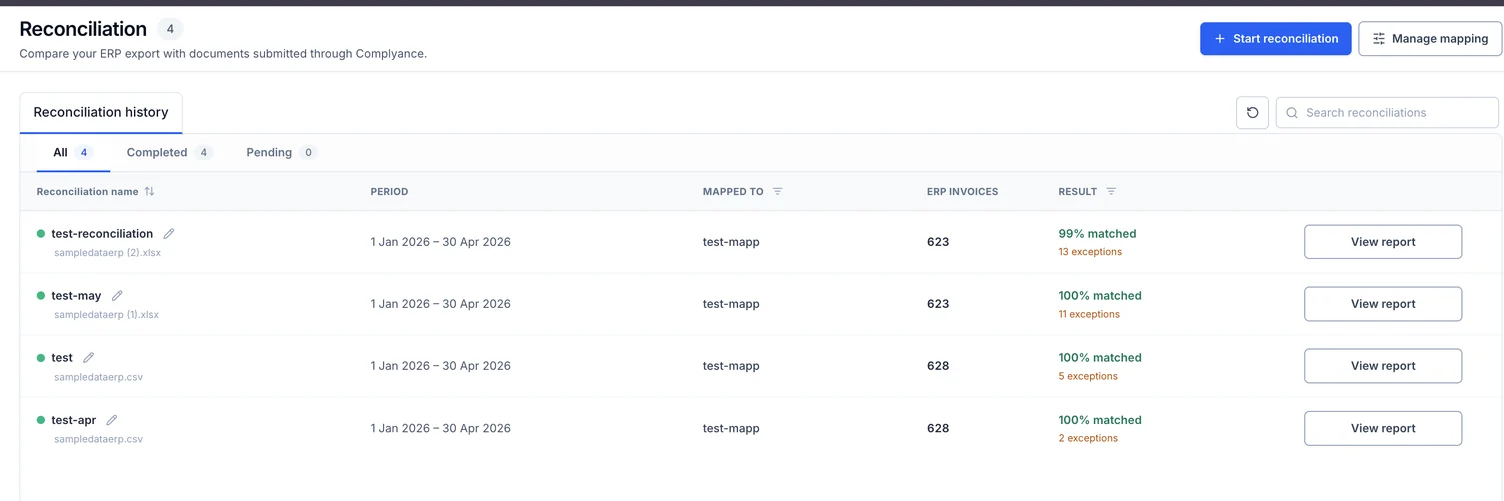
- Open a pending run and choose Continue reconciliation. The uploaded file and mapping remain in place.
- Open a completed run to view its summary, review the report or choose Download Excel.
- Use the pencil action to rename a reconciliation.
- Use the delete action to permanently remove a reconciliation and its uploaded ERP data.
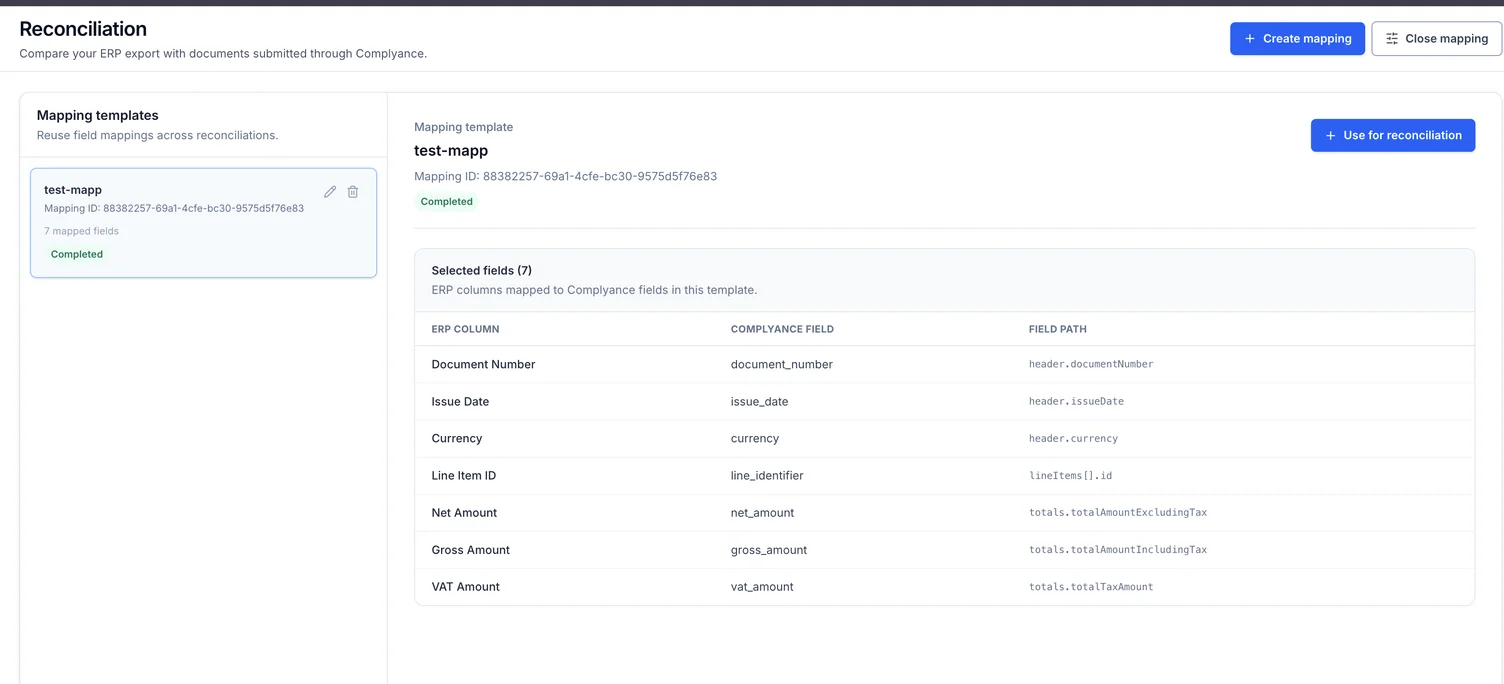
Choose Manage mapping to create, rename or delete reusable mappings. Deleting a mapping does not change reconciliations that already used it.