

Onboard a company
Add a company to the selected country and complete its e-invoicing registration. Have its legal, tax, branch and source details ready before you begin.
Onboarding adds the legal entity that issues invoices. The fields and registration steps change by country.
Start the company
Open Onboard and choose Add Company. A guided form opens for the selected country.
Enter the company identity
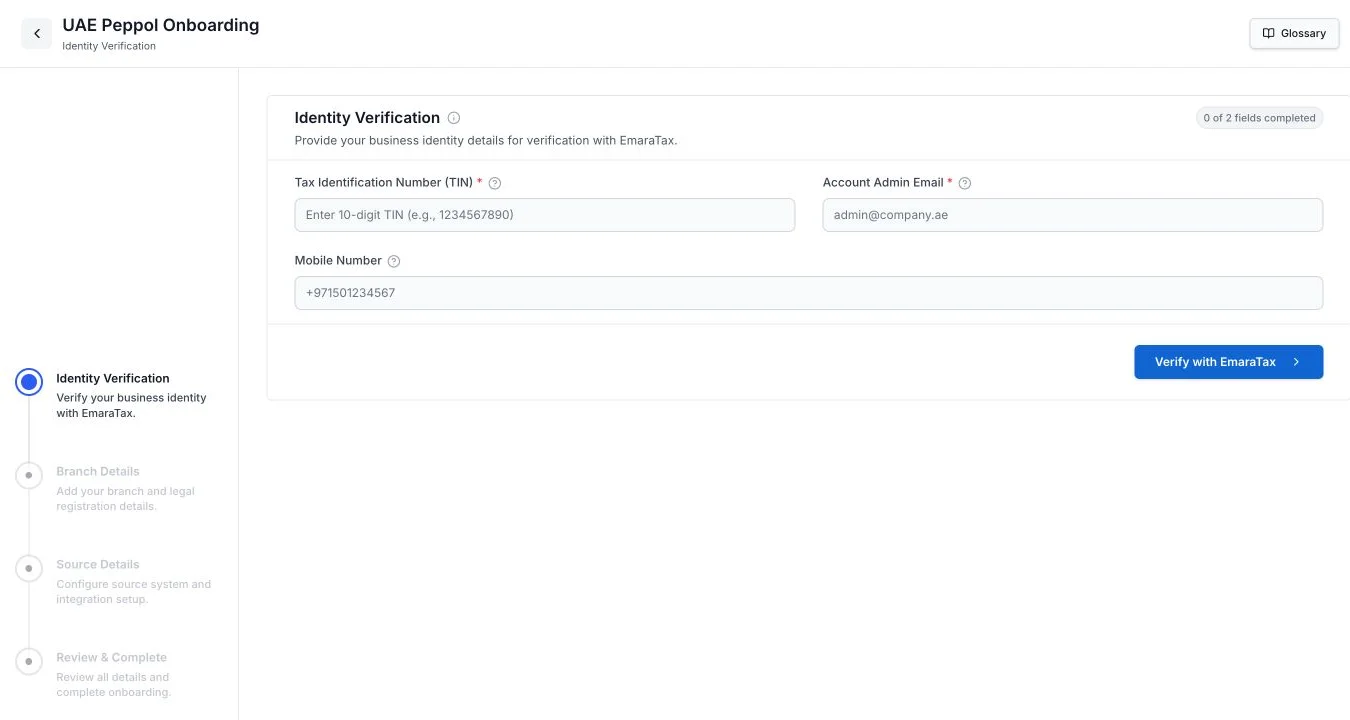
Complete the required identity fields, then choose the button at the bottom of the step to continue.
For the United Arab Emirates, Identity Verification asks for the company’s Tax Identification Number (TIN) and the account administrator’s email address. A mobile number is optional. Choose Verify with EmaraTax to continue.
Add the branch and source
Enter the primary branch’s name, identifier and address when asked. Then enter the Source Name and Source Version for the system that sends invoices from that branch.
Check the progress list as you work. In the United Arab Emirates flow, the remaining steps are Branch Details, Source Details and Review & Complete.
Complete network setup
If the form offers Peppol setup, follow the prompts to register a new participant or use the company’s existing participant ID. Check the identifier carefully before you continue because its format depends on the country.
Review and finish
Review the details, correct any mistakes, and complete onboarding. The company appears on the Onboarding page with its branches, source details and registration status.
Check the result
Open Onboard after registration. A completed company card can show:
- the company name and e-invoicing status
- each branch and its participant ID, when the country uses one
- the source name and source version for each branch
If you need another location, choose Add Branch on the company card and complete the branch details.
If something goes wrong
A required field does not let you continue
Look for a red star and the message under the field. Enter the value in the format shown by the form, then continue again.
Identity verification fails
Check the tax identifier and administrator email against the company’s registered details. Correct them before retrying verification.
Service temporarily unavailable.
Wait a few moments and try again.
The company stays Pending
Registration has not finished. Use Refresh status if the page shows it, then check again later. Contact support if the status does not change.
You are not authorized to onboard companies
Ask a workspace administrator for access to company onboarding.
Next, create a document for the onboarded company.