

See sources and where they are used
Find the systems that send invoices to your workspace and see which integrations or branches use each one. You need access to Sources in the One Platform Invoice Portal.
Open the source list
A Source is a system that sends invoices to Complyance, such as an ERP.
- Sign in to One Platform and open the Invoice Portal.
- Check the selected workspace, country and environment in the sidebar.
- Select Sources.
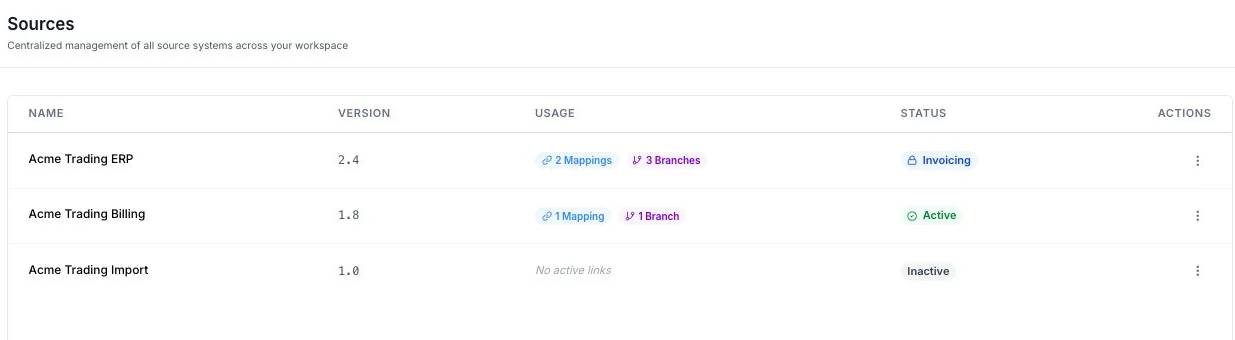
You should see a row for each source available in the selected country and environment. The list shows Name, Version, Usage, Status and Actions. If there are no rows, it says No sources found.
Check where a source is used
Look at Usage for the number of integration mappings and branches linked to the source. No active links means neither is listed. The Status column can show Active, Inactive or Invoicing. Use the usage details to check the specific links behind a status.
- Select the source name, or open its Actions menu and select View Usage.
- Read Integration Mappings for mapping names and Linked Branches for company and branch names.
- Select Close when you are done.
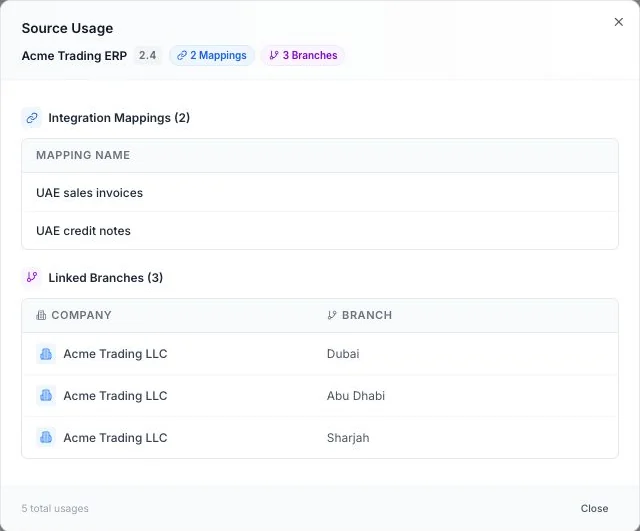
If the source has no links, the dialog says No usage found. You can add links and change source details in the Developer portal.
If something looks wrong
- A source is missing. Check the selected workspace, country and environment. Sources are registered during company onboarding; a new source does not appear here until it has been added.
- A mapping or branch is missing from Usage. Open View Usage to check the names. If the link still needs to be added, use Source management in the Developer portal.
- You cannot open Sources. Check that your role has access to this page in the selected workspace.