

Set up SFTP ingestion
Create an SFTP connection so Complyance can pick up invoice files. You need Developer portal access, Malaysia or the United Arab Emirates selected, and files that match the connection’s mapping.
An SFTP connection lets you send invoice workbooks as files instead of API requests. Either your team uploads files to a server Complyance hosts, or Complyance collects them from an SFTP server you run.
What each country accepts
- United Arab Emirates: invoice workbooks.
- Malaysia: invoice and receipt workbooks through the same connection. A file whose name contains
receipt, in any case, is imported as receipts, for examplereceipt-july.xlsxorjuly-RECEIPT.xlsx. Every other file is imported as invoices. A Malaysian workspace that still sends through API v2 takes invoice files only: a file whose name containsreceiptis refused.
Create the connection
Name the connection
Open Developer portal → SFTP and choose Add SFTP connection. In Name and metadata:
| Field | What to enter |
|---|---|
| Connection name | A name that is unique in the workspace, such as Acme Trading — invoices |
| Country | United Arab Emirates - AE or Malaysia - MY |
| Environment | Sandbox to start, Production for live documents |
| Mapping template | Shown as LOCKED. The connection uses the default mapping. |
Choose Next.
Choose who hosts the server
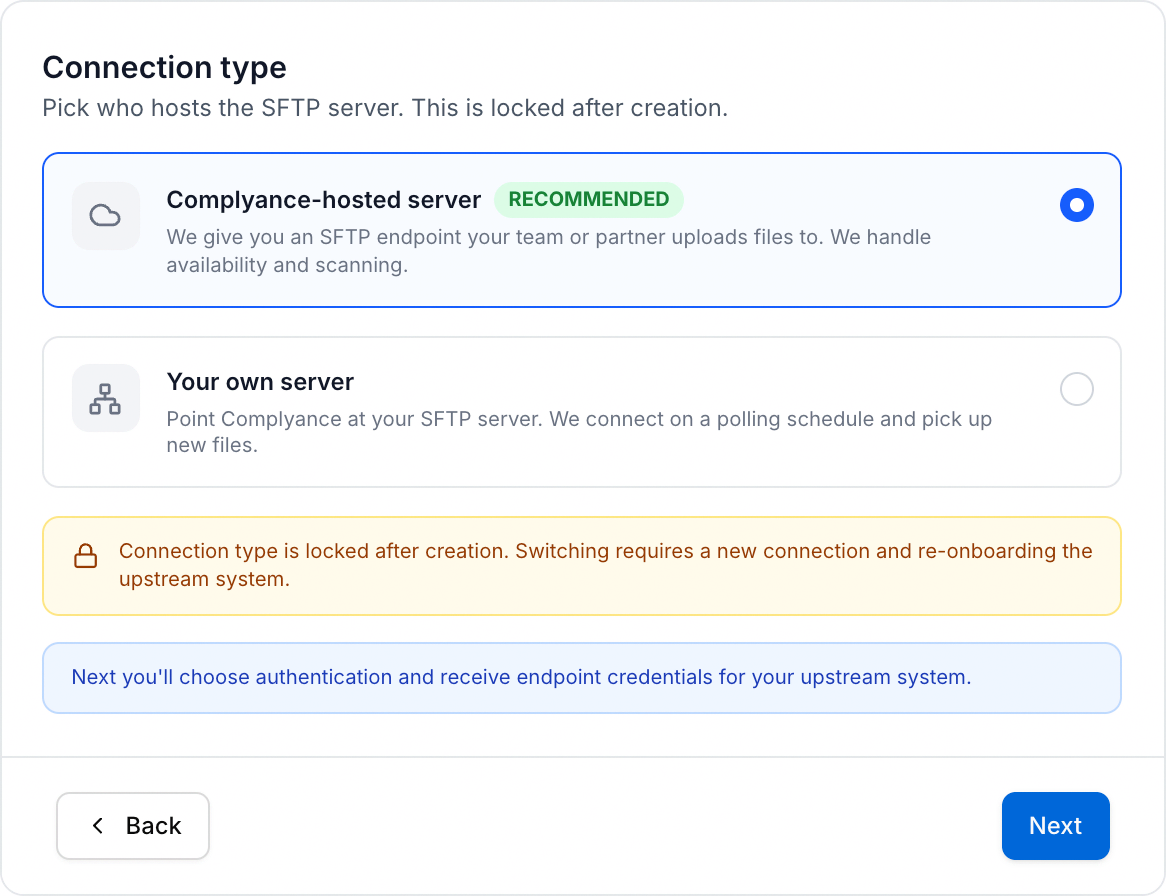
| Option | When to use it |
|---|---|
| Complyance-hosted server (recommended) | Complyance gives you an endpoint. Your team or your system uploads files to it. |
| Your own server | You already run an SFTP server. Complyance connects to it on a schedule and collects new files. |
You cannot change this later. To switch, create a new connection.
Set up authentication
For a Complyance-hosted server:
- Username & password: Complyance generates a username and a one-time password.
- SSH public key: paste your uploader’s public key in OpenSSH format. To register several keys, put one key per line. Your uploader keeps the matching private key.
For Your own server:
- Username & password, or Username & private key with its passphrase if it has one.
- Then, under Connection details, enter Host, Port (usually
22), Username and Remote path.
Use a dedicated SFTP account with access to the upload folders only.
Prepare the folders on your own server
Skip this step for a Complyance-hosted server.
The Remote path must contain four folders. Create them before you test the connection:
| Folder | What it holds |
|---|---|
inbound/ | New workbooks. Upload here. |
processing/ | Workbooks that passed our checks and are waiting for the tax authority’s result |
invalid/ | Workbooks that failed our checks or were rejected, each with an error workbook beside it |
validated/ | Workbooks the tax authority accepted |
For example, with Remote path /invoices, create /invoices/inbound, /invoices/processing, /invoices/invalid and /invoices/validated. The hint under Remote path lists only three of them, but Test connection fails if any of the four is missing.
Choose the lookup interval and notifications
In Customization:
- Lookup interval (your own server only): how often Complyance checks
inbound/. Choose Every 1 minute, Every 5 minutes, Every 15 minutes, Every 30 minutes or Every 1 hour. Every 1 minute is the default. - Email addresses: who receives the digest email. Separate several addresses with commas or new lines.
- Notify me when: three switches, all on by default: Files import successfully, Files fail to import and Duplicate files are skipped. Turn off the ones you do not want.
Review and create
Check the summary and choose Create connection, or Save as draft to finish it later. With Username & password on a Complyance-hosted server, the generated password appears once. Copy it into the uploading system before you close the dialog.
The connection starts in Draft.
Test and activate
On the connection’s page, choose Test connection. A passing test shows Connection validated: the credentials, the host and the remote path all work. Then choose Activate. The connection shows Active and starts picking up files.
After you change the connection’s details, it shows Re-test required before activation. Test it again, then activate it.
Send files
Connect with any SFTP client, such as FileZilla, WinSCP or Cyberduck, using the host, port and username on the connection’s page. Upload each workbook to inbound/.
- Send
.xlsxworkbooks. The connection imports.xlsxfiles; other types are rejected as an extension mismatch. - Each file can be up to 50 MB.
- Re-uploading a file that was already imported can be skipped as a duplicate.
Follow each file in Fetch history on the connection’s page. On your own server, the file also moves between the folders:
- Complyance picks it up from
inbound/and checks every row. - If any row fails, the workbook moves to
invalid/with an error workbook,<file name>.errors.xlsx, that lists the problems. - If every row passes, the workbook moves to
processing/and its documents are sent to the tax authority. - When the result arrives, the workbook moves to
validated/if it was accepted, or toinvalid/if it was rejected. In Malaysia, accepted means LHDN accepted it. In the United Arab Emirates, both the buyer’s Peppol access point and the Federal Tax Authority must accept it.
Open the resulting documents in the Invoice Portal to check each one. A file that reached processing/ has passed our checks; it is not yet accepted.
Rotate the password
If a password is lost or exposed, open the connection and choose Rotate password, then Generate new password. The old password stops working at once, and ingestion pauses. Save the new password, update your uploading system, then test and activate the connection again.
If something goes wrong
Validation failed when testing: check the host, port, credentials and that the remote path holds all four folders. For a missing folder the message names it: does not exist or is not accessible.
No file appears: check that the connection is Active, the environment is the one you expect and the file is in inbound/. On your own server, wait for the lookup interval.
A file fails or is skipped: open Fetch history, or the error workbook in invalid/ on your own server, before uploading it again. Keep the file and the error details if you ask support for help.
Next, set up purchase invoice webhooks if your application also needs to hear about purchases you receive.
Last updated