

Join from an invitation
Join your team's existing workspace without setting up a new one. You need an invitation email and access to the email address it was sent to.
Join the workspace
Open your invitation
Open the link in the invitation email. You should see the name of the person who invited you and a prompt to sign up or sign in.
Check the email address shown on the invitation. Use that address for the next step, even if you already have a Complyance account with another email.
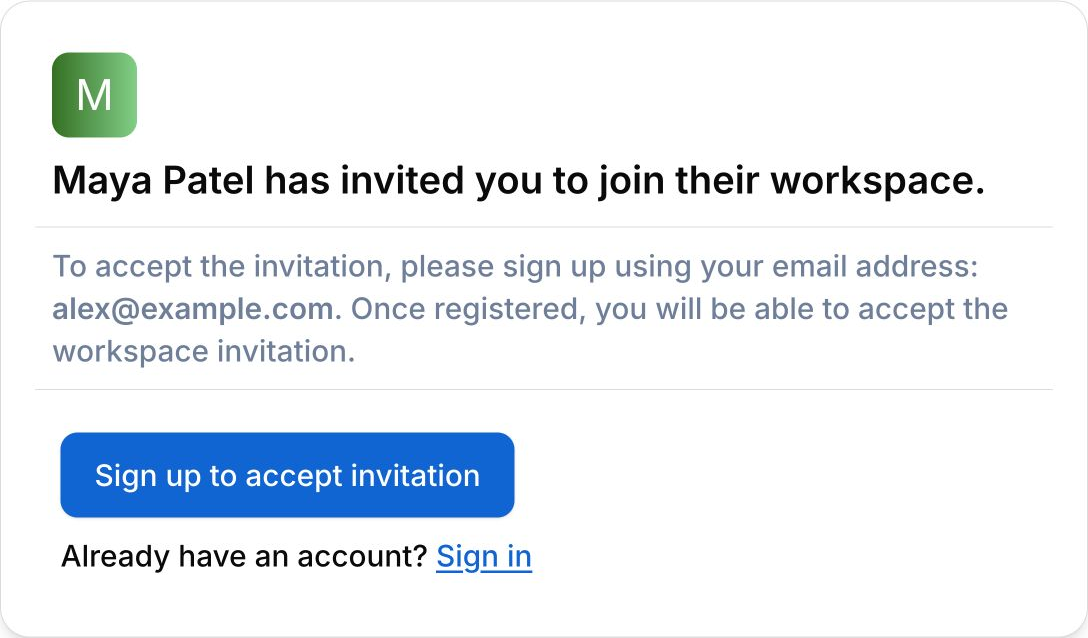
Sign up or sign in
If you are new to Complyance:
- Choose Sign up to accept invitation. Your invited email address is filled in.
- Enter your name and a password. Review and accept the terms, then choose Sign up.
- Open the verification email to confirm your address, then sign in.
If you already have an account: choose Sign In and sign in with the invited email. If the page offers sign-up instead, use the Sign in link below it.
You should return to the invitation. If you do not, open the original invitation link again. If you were already signed in with the invited email, you can go straight to the next step.
Accept the invitation
Choose Accept Invitation to join the workspace.
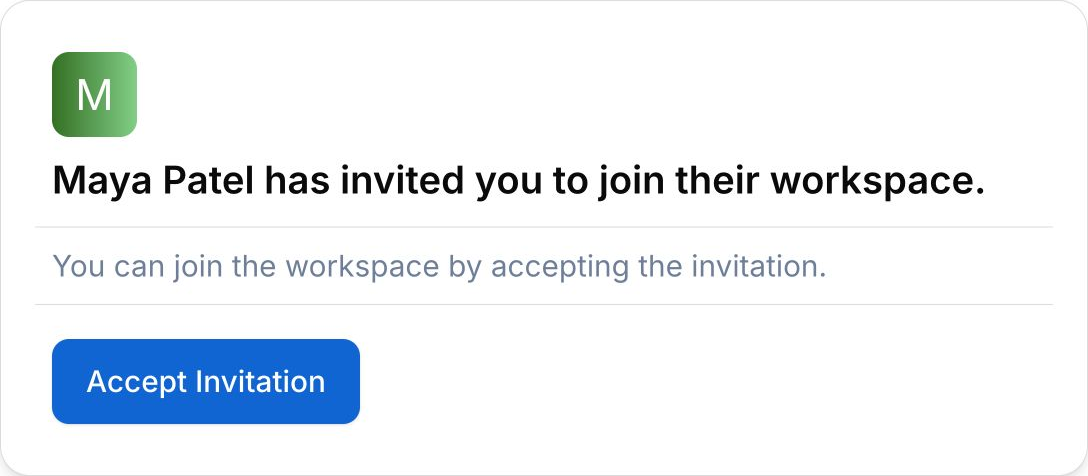
You should see the workspace dashboard. You are joining your team’s existing workspace, so you do not need to name a new workspace or complete its setup questions.
If something goes wrong
You are signed in with a different email
The invitation shows both your signed-in address and the invited address. Choose Sign In with invited Email, then sign in with the address that received the invitation. If that address does not have an account, choose Sign Up.
If the invitation was sent to the wrong address, ask the person who invited you to send a new invitation to the address you want to use.
The invitation has expired
If you see Invitation Expired, ask your workspace administrator for a new invitation. Open the link in the new email.
The invitation cannot be found
If the invitation page says the invitation was not found, contact the person who invited you and ask for a new link.
Next step
Get familiar with the Invoice Portal dashboard.