

Consolidate receipts in Malaysia
Receipts you send or upload now collect in the B2C Vault. Set how each company consolidates, then consolidate the month or the receipts you pick, check the preview and submit to LHDN.
LHDN accepts sales to consumers who do not ask for an e-invoice as one consolidated e-invoice. In the older app, receipts were consolidated monthly. In One Platform you choose how each company consolidates, and you see the consolidated e-invoices before they go to LHDN.
What changed
| In the older app | In One Platform | |
|---|---|---|
| Where receipts go | Stored for monthly consolidation | The B2C Vault, in the Invoice Portal menu |
| When they are submitted | Monthly | When you submit them, or automatically by the 7th of the following month with Auto Send |
New in One Platform:
- You choose how each company’s receipts are combined: Unified Consolidation, Branch-wise Consolidation or Individual Receipt Submission.
- You see a preview of every consolidated e-invoice before it goes to LHDN.
- Manual consolidation submits only the receipts you select, without waiting for the month to end.
Open the B2C Vault
Select Malaysia and your environment at the bottom of the sidebar, then open B2C Vault.
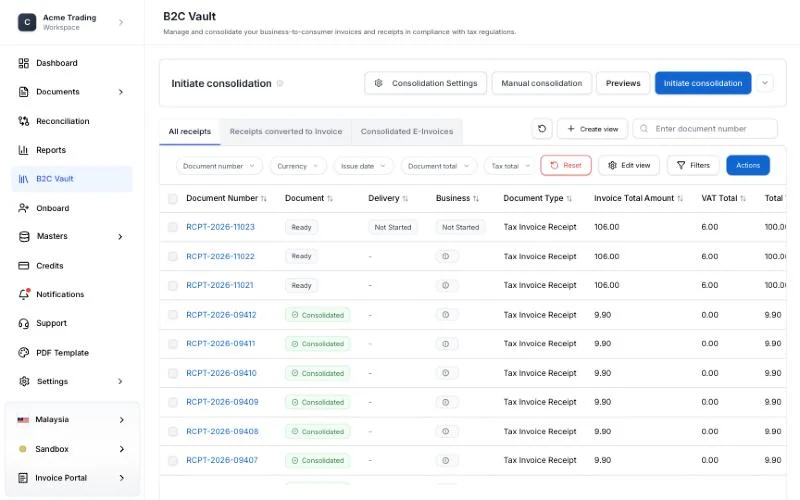
The vault has three tabs:
| Tab | What it lists |
|---|---|
| All receipts | Every receipt you sent with createReciept or uploaded as an Excel or CSV file with Upload receipt. |
| Receipts converted to Invoice | Invoices created from individual receipts. |
| Consolidated E-Invoices | The consolidated e-invoices submitted to LHDN. |
A receipt waiting to be consolidated shows Ready in the Document column. Once it is included in a consolidated e-invoice it shows Consolidated.
Set up consolidation
Do this once before your first consolidation. The settings apply to every consolidation that follows.
Open the settings
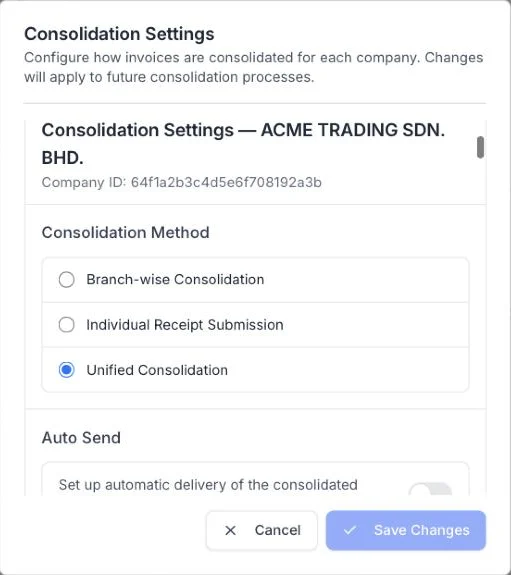
Choose Consolidation Settings at the top of the vault.
Choose the consolidation timezone
Consolidation timezone decides which day and month a receipt belongs to, for both manual and automatic consolidation in the workspace. For Malaysia, choose (GMT+08:00) Asia/Kuala Lumpur so that receipts fall in the month your business recorded them.
Set each company
The dialog has a section for each company. For each one, choose:
- Consolidation Method: Unified Consolidation combines all branches into one e-invoice. Branch-wise Consolidation creates one e-invoice for each branch. Individual Receipt Submission submits eligible receipts one by one.
- Auto Send: turn it on to deliver the consolidated e-invoice to LHDN automatically by the 7th of the following month.
- Branch name before line item: Add branch name starts each consolidated line with the branch name, such as
Main Branch --> Item. Until you choose, lines are created without it.
Save
Choose Save Changes. It becomes available once you change a setting.
How consolidation works
There are three ways to consolidate receipts:
| Way | What it consolidates | Who starts it |
|---|---|---|
| Initiate consolidation | The eligible receipts from last month | You |
| Auto Send, in Consolidation Settings | Last month’s receipts, delivered to LHDN by the 7th of the following month | The vault, automatically |
| Manual consolidation | The receipts you select | You |
When you start a consolidation yourself, you choose what happens next:
- Preview prepares the consolidated e-invoices and puts them in Previews. Nothing goes to LHDN until you check the preview and submit it there.
- Preview and submit prepares the consolidated e-invoices and submits them to LHDN in one step, without stopping for you to check.
Use Preview until you are confident in your settings.
Consolidate last month’s receipts
- In the B2C Vault, choose Initiate consolidation. The vault collects the eligible receipts from the previous month. If there are none, it shows No eligible receipts found for this period.
- Choose Preview to check the result first, or Preview and submit to send it to LHDN straight away.
- If you chose Preview, check and submit the preview.
Consolidate the receipts you choose
Use this when you want to submit some receipts now, without waiting for the month to end.
- In the B2C Vault, choose Manual consolidation. The list shows receipts that have not been consolidated or turned into an invoice.
- Filter the list to the receipts you want. Use the filters above the list, such as Issue date, or Filters for more.
- Select the box at the top of the list to select every receipt shown, or select receipts one by one. The number you selected appears beside the buttons, such as Receipts: 2. To fit more receipts on one page, raise Show at the bottom of the list.
- Choose Preview to check the result first, or Preview and submit to send it to LHDN straight away.
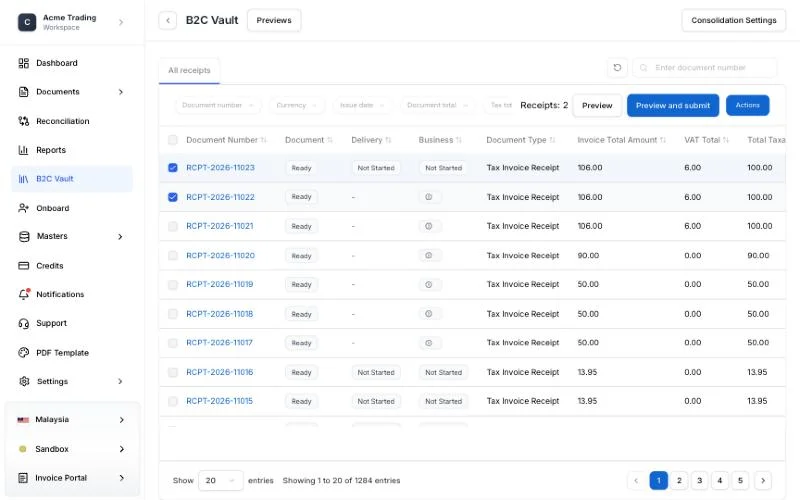
If you chose Preview, check and submit the preview.
Check and submit a preview
A preview holds the consolidated e-invoices that are ready but not yet sent to LHDN. A workspace has one preview at a time. The consolidation you started, whether you chose Preview or Preview and submit, is shown in Previews, so you can follow it there.
Open Previews
Choose Previews at the top of the B2C Vault. The consolidation is shown as a card, with:
- the company, and whether you chose Preview or Preview and submit
- its status, in the top right corner
- Prepared invoices: how many consolidated e-invoices it made
- Receipts: how many receipts it includes
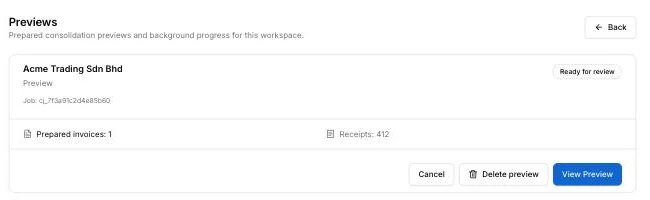
Preparing a preview can take a while. You can leave the page; preparation continues in the background, and the card updates when you come back.
| Status | What it means |
|---|---|
| Queued, Preparing previews | The consolidated e-invoices are being prepared. |
| Ready for review | The preview is ready. Nothing has been sent to LHDN. |
| Queuing submission, Submission queued | The e-invoices are being sent to LHDN. The card counts how many are queued, accepted and rejected. |
| Accepted | LHDN accepted the consolidated e-invoices. |
| Partially accepted, Rejected | LHDN accepted only some of them, or none. Open the consolidation to see why before trying again. |
| Failed | The consolidation could not be completed. |
| Manual review required | LHDN may have received the submission, but the result could not be confirmed. Contact support before trying again. |
| Cancelled | The consolidation was stopped. |
Review the consolidated e-invoices
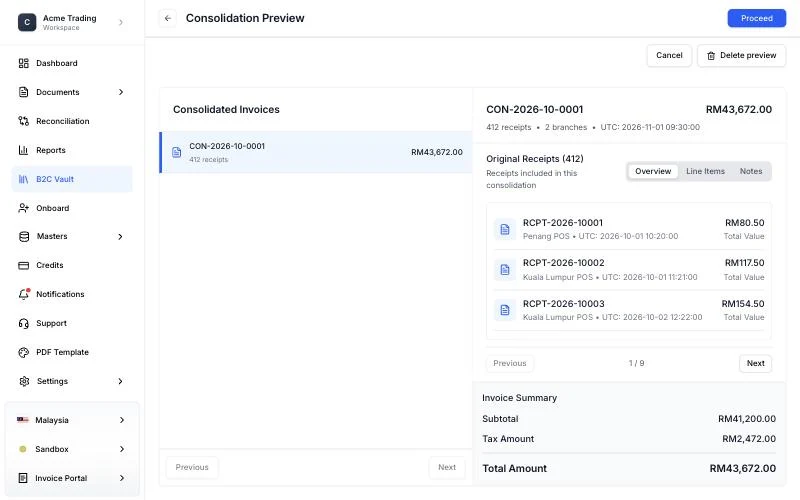
On a card that is Ready for review, choose View Preview. Consolidation Preview opens:
- Consolidated Invoices, on the left, lists each e-invoice with its number of receipts and its total. Select one to see it on the right.
- Overview lists its Original Receipts. Line Items shows each line with its quantity, unit price, tax rate and tax amount.
- Invoice Summary shows the Subtotal, Tax Amount and Total Amount.
Submit or cancel
- Proceed submits the consolidated e-invoices to LHDN and takes you back to Previews, where the card shows Submission queued and then LHDN’s result.
- Cancel stops a consolidation that is still being prepared or waiting for review. Nothing is sent to LHDN.
- Delete preview removes the e-invoices that were not submitted and releases their receipts, so you can consolidate them again. E-invoices already submitted stay as they are.
If you chose Preview and submit, there is nothing to review: the card goes straight from preparing to submitting, and then shows LHDN’s result.
After you submit
The receipts change to Consolidated, and the consolidated e-invoice appears under Consolidated E-Invoices. Returning to the vault does not by itself mean LHDN has accepted the e-invoice; check its status there.
Manage Malaysia B2C receipts explains every message the vault can show, including what to do when a consolidation fails or LHDN rejects it.
Last updated