

Excel/CSV uploads in Malaysia
In the older app you uploaded Excel and CSV files from the dashboard. In One Platform, the new app, uploads live under Sales and take the same template.
What changed
| In the older app | In One Platform | |
|---|---|---|
| Where you upload | On the dashboard | Documents → Sales |
| Invoices, credit notes, debit notes and refund notes | Upload a file | Upload new document(s) |
| Consumer receipts | Upload a file | Upload receipt |
| Template | The Malaysia upload template | The same template. Your existing files work as they are. |
Open Sales
Select Malaysia
At the bottom of the sidebar, check that Malaysia and the right environment, Sandbox or Production, are selected.
Go to Sales
Open Documents in the sidebar, then choose Sales. Both upload buttons are at the top of Sales Documents.
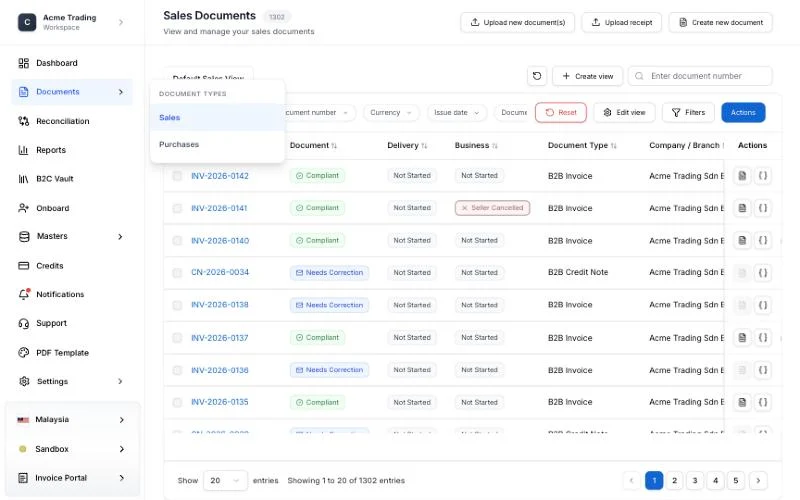
Upload invoices and notes
- In Sales Documents, choose Upload new document(s). The Import Invoice Documents screen opens.
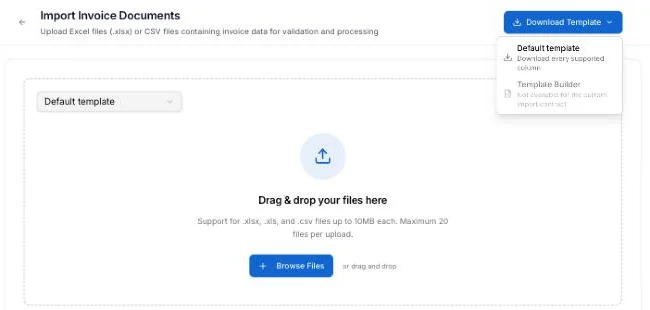
- Keep Default template selected. This is the same template as in the older app, so the files you already prepare upload as they are.
- Drop your files on the screen, or choose Browse Files. You can upload
.xlsx,.xlsand.csvfiles of up to 10 MB each, and up to 20 files at a time.
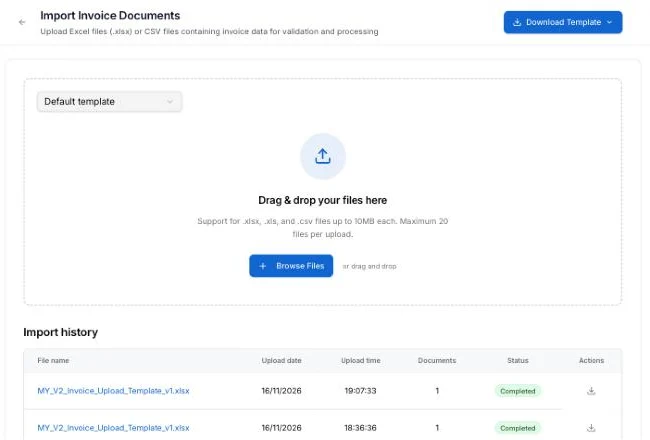
Each upload appears under Import history with its status and the number of documents it held. The documents appear in Sales Documents.
If you need a blank template, choose Download Template → Default template. Upload invoice documents explains how to review an upload’s results and fix rows that fail.
Upload receipts
- In Sales Documents, choose Upload receipt.
- Keep Default template selected. It takes the same receipt file you uploaded in the older app.
- Drop your files on the screen, or choose Browse Files. The same file limits apply.
Uploaded receipts go to the B2C Vault, not to Sales Documents. From there you consolidate them. See Consolidate receipts.
Read the new statuses
The older app showed you the status LHDN gave a document. In Sales Documents, One Platform splits it into three columns:
| In the older app you saw | In One Platform |
|---|---|
Valid | Document: Compliant. LHDN accepted it. |
Invalid | Document: Non-Compliant. Open its Status History to see why, then send a corrected document. |
Rejected (by the buyer) | Business: Buyer Rejected |
Cancelled (by you) | Business: Seller Cancelled |
| A document waiting for LHDN | Document: Processing |
Two statuses are new:
- Needs Correction: our checks found problems before the document was sent to LHDN. Nothing was sent. Open the document, fix the fields listed under Validation issues and choose Update invoice.
- Delivery: whether the document reached the buyer over Peppol, such as Delivered or Not Sent when either side has no Peppol ID.
Document statuses lists every status and what to do about it.
If something goes wrong
- The upload buttons are missing: check that Malaysia is selected, and ask your workspace administrator whether you have permission to create documents.
- An uploaded document does not appear in Sales: check the environment at the bottom of the sidebar. Sandbox and production documents are listed separately.
- A document shows Needs Correction: it was not sent to LHDN. Fix it in the portal, or correct the file and upload it again.
Last updated